HTTPS and Certificates
ProxCenter can serve its web interface over HTTPS by itself, without a reverse proxy in front. Certificates are managed from Settings > HTTPS / Certificates: a self-signed certificate generated at first boot, a certificate you import, or one issued and renewed automatically over ACME (Let's Encrypt, ZeroSSL or an internal CA).
The tab is available in every edition, to a super administrator of the provider tenant. A new certificate is swapped in while ProxCenter runs, without a restart.
Nothing changes for you. The plain HTTP port stays open whether built-in HTTPS is on or off, so a reverse proxy that terminates TLS keeps working as described in Reverse Proxy and Public URL.
Quick Path
Before you start
- ProxCenter 1.4.13 or later, with the compose file of that release. Re-running the installer brings it, see Updating ProxCenter.
- The host port that publishes HTTPS,
443on a fresh install, see Ports.
Turn HTTPS on
- Open Settings > HTTPS / Certificates. The active certificate is shown at the top: on a fresh install it is the self-signed one generated at first boot.
- Optionally import your own certificate or set up ACME, see Certificate source.
- Switch on Serve ProxCenter over HTTPS, then open
https://your-serverand check that the interface answers. - Only then set
APP_URLandNEXTAUTH_URLto thehttps://address in/opt/proxcenter/.envand rundocker compose up -d, see Public URL.
Check the result
- The browser shows the certificate you expect on
https://your-server. - The orange warning of the Listener card is gone.
Listener
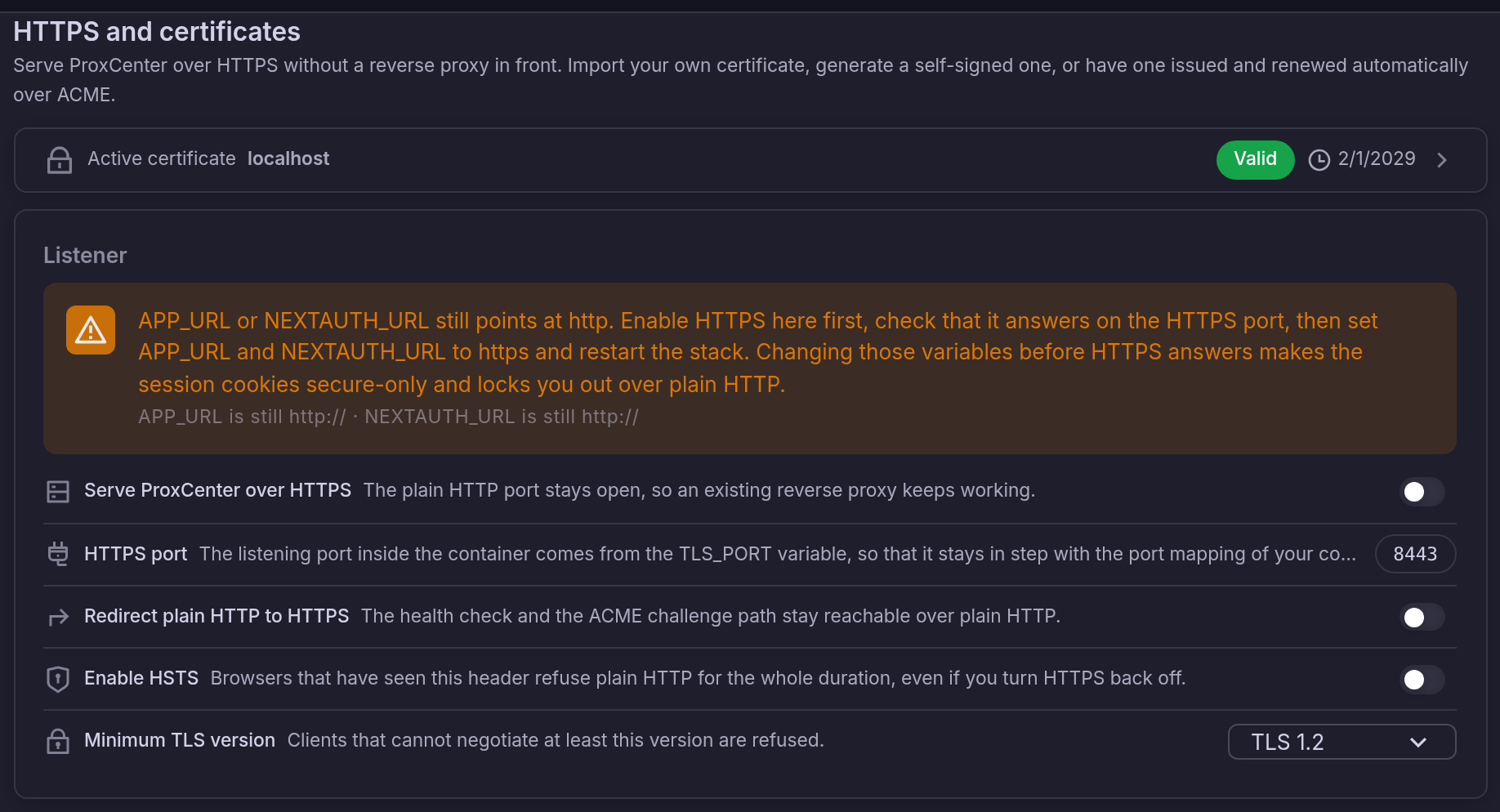
| Setting | What it does |
|---|---|
| Serve ProxCenter over HTTPS | Starts the HTTPS listener. The plain HTTP port stays open, so a reverse proxy in front keeps working. |
| HTTPS port | The port the listener binds to inside the container. It comes from the TLS_PORT variable, 8443 by default, so that it stays in step with the port mapping of the compose file, and is read-only here. |
| Redirect plain HTTP to HTTPS | Answers plain HTTP with a redirect to the HTTPS address. The health check and the ACME challenge path stay reachable over plain HTTP. Off by default. |
| Enable HSTS | Sends the Strict-Transport-Security header, with its max-age, subdomains and preload options. Browsers that have seen it refuse plain HTTP for the whole duration, even if you turn HTTPS back off. |
| Minimum TLS version | Clients that cannot negotiate at least this version are refused. TLS 1.2 by default. |
The redirect is applied only once the HTTPS listener actually answers. A listener that cannot start, because its port is taken or its key cannot be read, never leaves plain HTTP bouncing to a port with nothing behind it.
Public URL
ProxCenter builds its links, its sign-in callback and the Secure flag of its cookies from APP_URL and NEXTAUTH_URL in /opt/proxcenter/.env. The Listener card warns as long as either still points at http://.
Change them in this order:
- Turn HTTPS on and check that
https://your-serveranswers. - Set both variables to the HTTPS address, for example
APP_URL=https://proxcenter.example.comandNEXTAUTH_URL=https://proxcenter.example.com. - Recreate the containers so they read the new values:
cd /opt/proxcenter && docker compose up -d.
With an https:// URL, the session cookies become secure-only. Changing the variables before HTTPS answers locks you out over plain HTTP until you change them back.
Certificate source
Pick the source under Certificate source. Every certificate is kept in a history and can be activated again later, see Previous certificates.
Self-signed
A self-signed certificate is generated at first boot, for the server address, localhost and the container name, so turning HTTPS on is a single switch. Generate a new self-signed certificate replaces it, for example after changing the server address.
Browsers warn about a self-signed certificate. It suits a lab or a first start; import a certificate from your own CA or use ACME for production.
Import a certificate
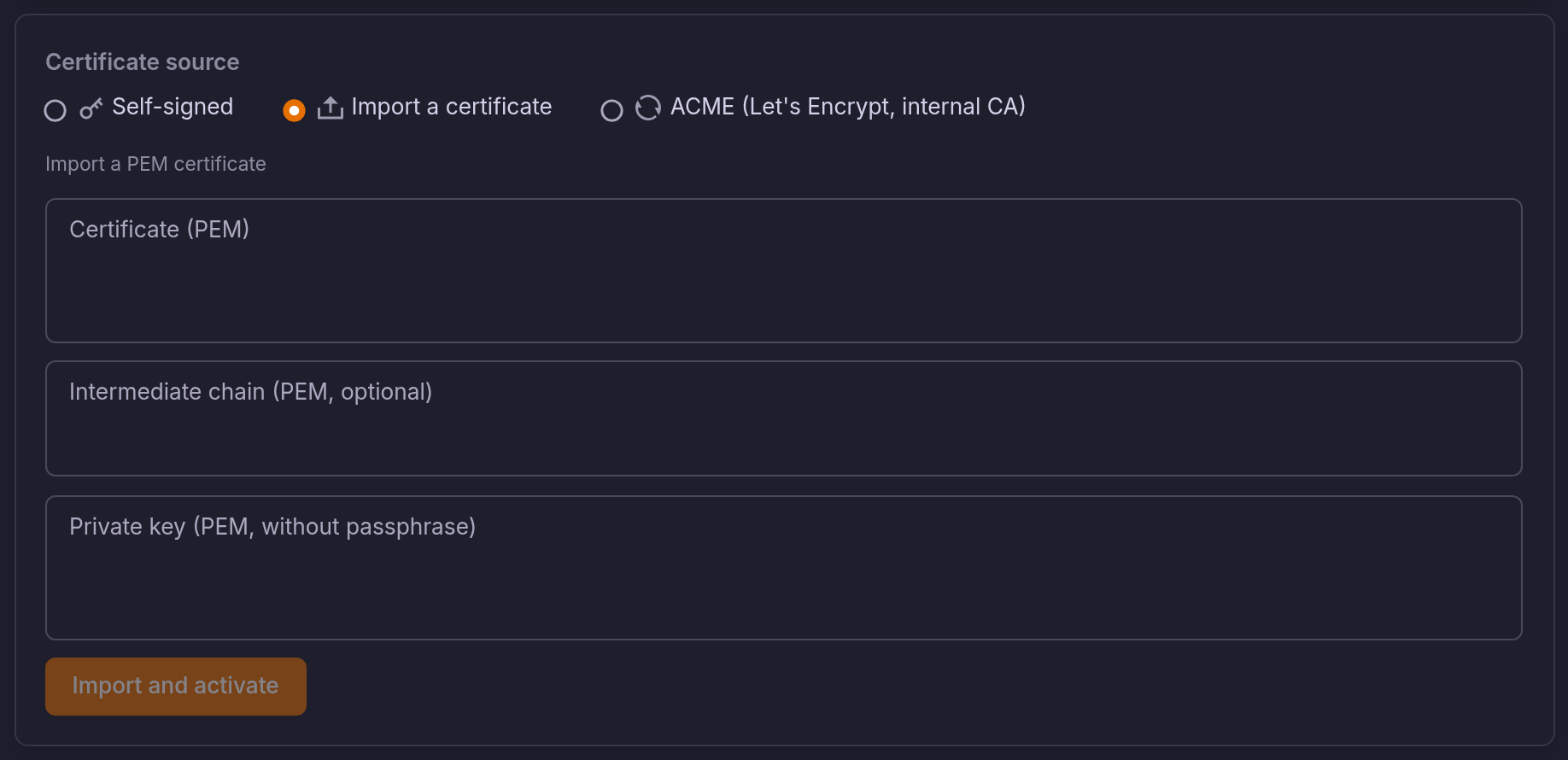
Paste the certificate, the optional intermediate chain and the private key, all in PEM format. The key must not be protected by a passphrase. Before activating, ProxCenter checks that the key matches the certificate, that the certificate is within its validity dates, and which names it covers.
ACME
ACME issues the certificate automatically and renews it before it expires.
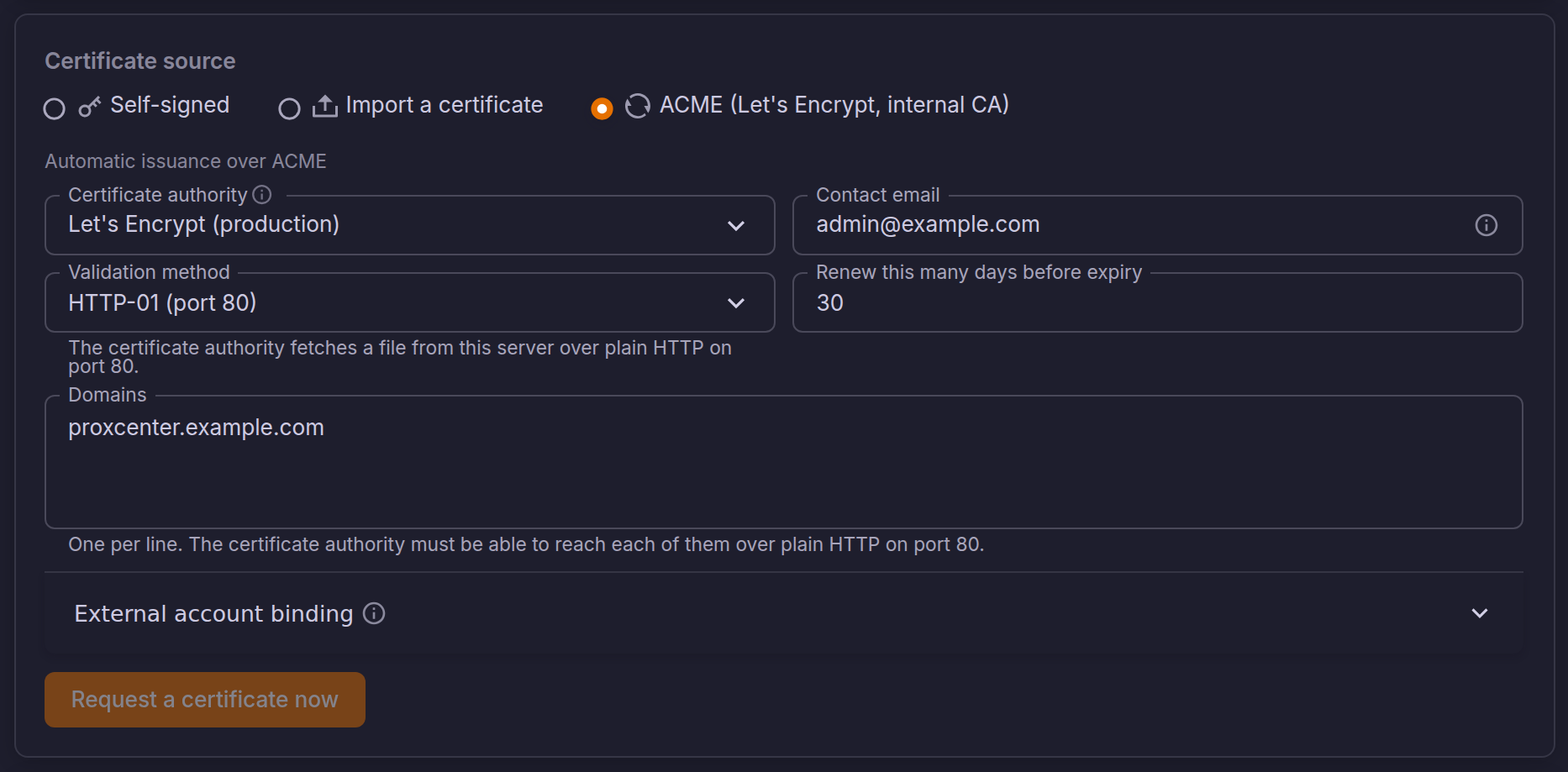
| Field | Description |
|---|---|
| Certificate authority | Let's Encrypt (production or staging), ZeroSSL, or a custom directory URL for an internal ACME CA. |
| Contact email | The address the certificate authority writes to about the account and expiring certificates. |
| Validation method | HTTP-01 or DNS-01, see below. |
| Renew this many days before expiry | 30 by default. |
| Domains | One name per line. |
| External account binding | Key identifier and HMAC key, for a certificate authority that requires it (ZeroSSL, some internal CAs). |
Request a certificate now places the order. The tab follows its progress and shows the reason when it fails.
HTTP-01
The certificate authority fetches a file from ProxCenter over plain HTTP on port 80, for each domain. The host port 80 must therefore reach ProxCenter's HTTP port (HTTP_BIND=80, the default of a fresh install), directly or through a reverse proxy that forwards /.well-known/acme-challenge/. HTTP-01 cannot issue a wildcard name.
DNS-01
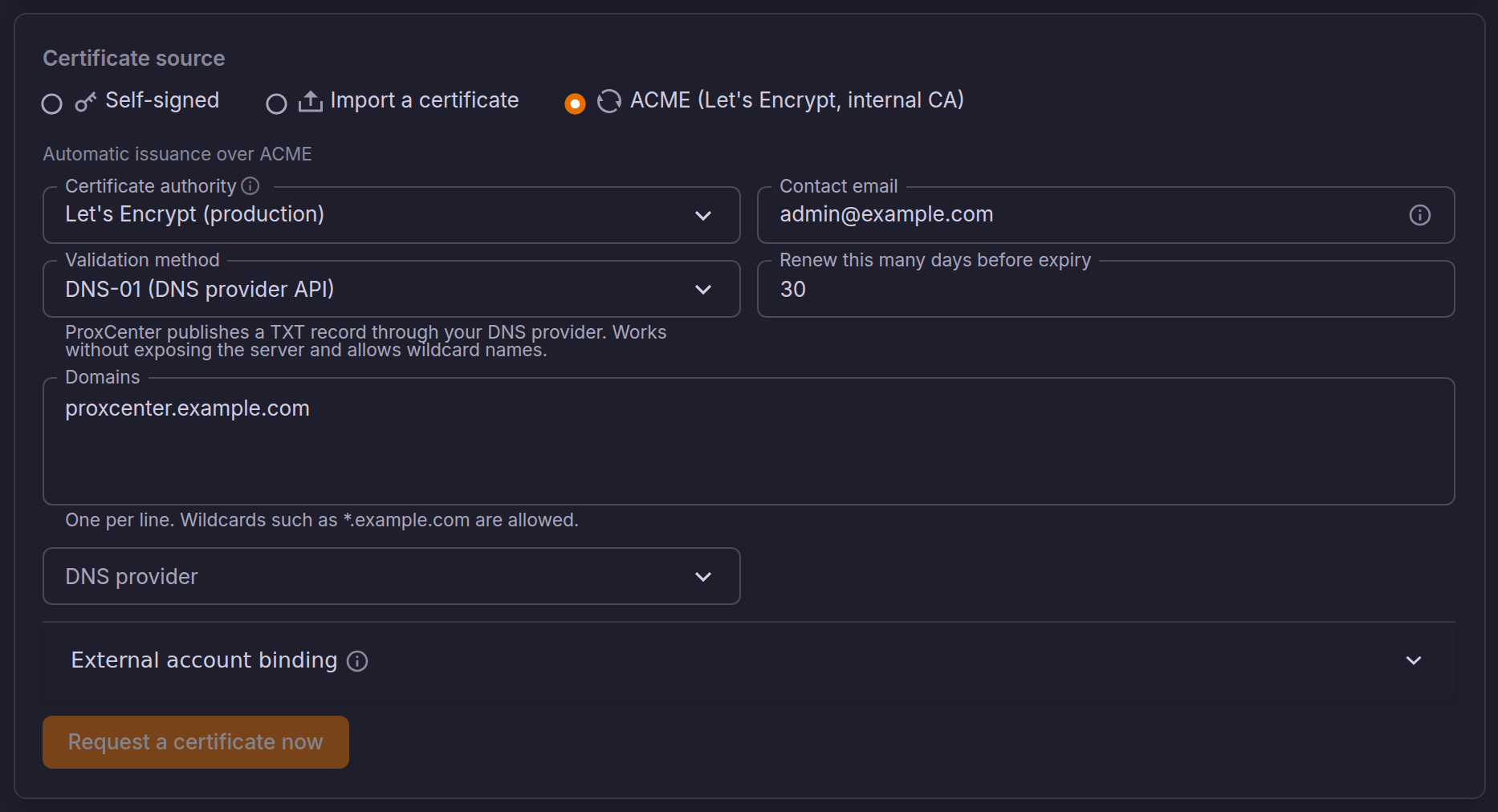
ProxCenter publishes a TXT record through your DNS provider, so the server never has to be reachable from the Internet and wildcard names such as *.example.com are allowed. Three providers are supported:
| Provider | Use it with |
|---|---|
| PowerDNS | The PowerDNS HTTP API. |
| RFC 2136 | Signed dynamic updates (TSIG), for BIND, Knot and any server that accepts them. |
| acme-dns | Any DNS host: a CNAME from _acme-challenge.your-domain to the acme-dns zone lets the domain validate without giving ProxCenter access to the zone itself. |
Test access checks the provider credentials before any order is placed. Once the record is published, ProxCenter waits until the zone's authoritative name servers answer with it, with a fixed delay as a fallback, before asking the certificate authority to validate.
Renewal
ACME certificates renew in the background, the configured number of days before expiry. A failed renewal is retried with an increasing delay and reported in the tab. On a high-availability install, a lease makes sure only one node renews at a time; the other nodes pick up the new certificate on their next check.
Previous certificates

Each certificate ever used is listed with its common name, fingerprint, source and validity. Activate an earlier one to go back to it, for example while an ACME order is being fixed.
Ports
The compose files publish two ports for the frontend:
Variable in .env | Default | Meaning |
|---|---|---|
HTTP_BIND | 3000 | Host port of the plain HTTP interface. |
HTTPS_BIND | empty | Host port of HTTPS. Empty, Docker publishes the HTTPS port on a free host port it picks, so an upgrade never fails to start because a port is taken. |
TLS_PORT | 8443 | Port of the HTTPS listener inside the container. Keep the default unless the HA host already uses it. |
TLS_ENABLED | false | Read once, at the very first boot, to seed Serve ProxCenter over HTTPS. Afterwards the tab is the only source of truth. |
What the installer writes:
| Case | Result |
|---|---|
| Fresh install, ports 80 and 443 free | HTTP_BIND=80, HTTPS_BIND=443, TLS_ENABLED=true: ProxCenter answers on https://your-server-ip with the self-signed certificate. The pre-flight shows Ports 80, 443 available · HTTPS. |
| Fresh install, port 80 or 443 already held | Port 3000 with HTTPS off, and HTTPS_BIND=8443 when that port is free. |
| Upgrade, installer run again | The ports already in .env are kept. HTTPS_BIND=8443 is added when .env has none and nothing holds 8443. |
Upgrade with docker compose pull only | The compose file of the previous release stays in place and publishes no HTTPS port. Re-run the installer, or copy the ports: and environment: blocks of the frontend service from the shipped compose file. |
To move ProxCenter to the standard ports later, set HTTP_BIND=80 and HTTPS_BIND=443 in /opt/proxcenter/.env and run docker compose up -d.
High availability
On an HA cluster the frontend uses the host network, so there is no port mapping: the listener binds to TLS_PORT directly on each node, and the VIP carries it like the HTTP port. A cluster converted before 1.4.13 keeps the compose file written at conversion time and needs three lines added by hand, see Upgrading a cluster deployed before v1.4.13. A cluster converted with 1.4.13 or later already has them.
Security
- Private keys, DNS provider secrets and the External account binding key are encrypted at rest and never returned by the API.
- Every change made in the tab is written to the audit log, with any key material in a refused request redacted.
- The tab and its API refuse every tenant other than the provider, before any role is looked at.
- The configuration backup carries the certificates, private keys included, encrypted under the backup passphrase. ACME accounts and pending challenges are left out.