RBAC (Role-Based Access Control)
Advanced RBAC is available exclusively in the Enterprise edition of ProxCenter. Community users have access to the default system roles (Admin, Operator, Viewer) but cannot create custom roles or configure granular permission scopes.
ProxCenter's RBAC system gives you fine-grained control over who can do what across your infrastructure. Define custom roles with precise permissions and assign them to users to enforce the principle of least privilege.
In multi-tenant deployments, RBAC is evaluated inside the user's tenant assignments. A role grants actions only within the tenant and vDC scopes visible to that user unless the user has provider-level administration rights.
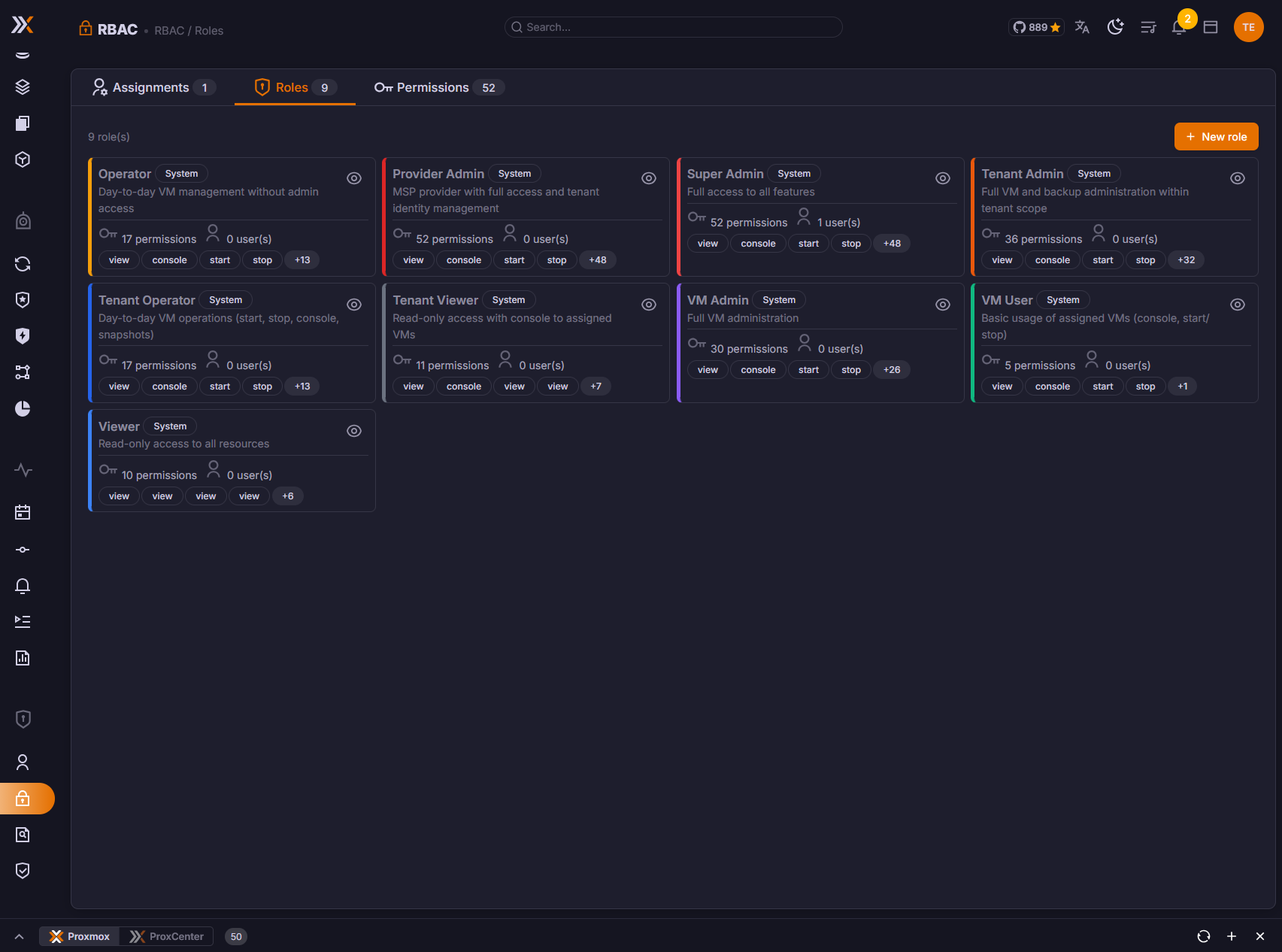
System Roles vs Custom Roles
System Roles
ProxCenter ships with three built-in system roles that cannot be modified or deleted:
| Role | Description |
|---|---|
| Admin | Full, unrestricted access to every feature and setting |
| Operator | Manage infrastructure and perform day-to-day operations |
| Viewer | Read-only access to dashboards, inventory, and logs |
System roles are available in both Community and Enterprise editions.
Custom Roles
With the Enterprise edition, you can create custom roles tailored to your organization's needs. Custom roles allow you to combine any set of permissions into a named role that can be assigned to one or more users.
To create a custom role:
- Navigate to Security & Access > RBAC / Roles
- Click Create Role
- Enter a role name and optional description
- Select a color for the role badge displayed in the UI
- Toggle the permissions you want to include
- Click Save
Use descriptive names like "Backup Operator" or "Network Admin" so that the role's purpose is immediately clear.
Permission Categories
Permissions are organized into the following categories:
VM (vm.*)
Control access to virtual machines and containers.
| Permission | Description |
|---|---|
vm.view | View VMs and containers, their status and details |
vm.start | Start or resume VMs and containers |
vm.stop | Stop, shutdown, or suspend VMs and containers |
vm.create | Create new VMs and containers |
vm.delete | Delete VMs and containers |
vm.migrate | Migrate VMs between nodes |
vm.snapshot | Create, restore, and delete snapshots |
vm.console | Access the VM console |
vm.config | Change a guest's configuration. Parent of the five rights below |
vm.config.media | Insert, eject or swap a CD/DVD image |
vm.config.nic | Add, remove or reconfigure a network interface. Parent of vm.config.nic.link |
vm.config.nic.link | Connect or disconnect an existing interface, and nothing else about it |
vm.config.hardware | Disks, CPU, memory, controllers, display and passthrough devices |
vm.config.boot | Boot order, boot disk, BIOS and machine type |
Fine-Grained Configuration Rights
vm.config used to be a single switch: either a user could not touch a guest's configuration at all, or they could resize its CPU, swap its disks and change its boot device. Since v1.4.10 it is the parent of five narrower rights, so a role can hand out the everyday gestures without handing out the machine.
| Right | What it covers | Typical use |
|---|---|---|
vm.config.media | A CD/DVD drive: any ide, sata or scsi line carrying media=cdrom | Let a support team mount an ISO without letting them touch a data disk |
vm.config.nic.link | Flipping the connected state of an existing net interface, and strictly nothing else on that line | Let an operator isolate a guest during an incident |
vm.config.nic | Everything else on a net line: adding, removing, rewiring, retagging, changing the model or the MAC | Network operations |
vm.config.hardware | Data disks, CPU (cores, sockets, cpu, vcpus, cpulimit, cpuunits, numa), memory (memory, balloon, shares, swap), controller and display (scsihw, vga), and the indexed devices virtio, hostpci, usb, efidisk, tpmstate, serial, audio, unused, plus rng0 | Sizing and hardware changes |
vm.config.boot | boot, bootdisk, bios and machine | Keep the boot chain and the firmware out of reach of everyone else |
The rule is read from the change itself, key by key, not from the screen it was made on. A request carrying several keys needs every right its keys classify into, so one edit touching a NIC and a disk needs both. Any configuration key that matches none of the five falls back to vm.config itself, so nothing is left ungoverned.
The hierarchy runs one way only:
- A role holding
vm.configgrants all five, which is why an existing role keeps working exactly as before. Nothing has to be re-granted after the upgrade. - A role holding
vm.config.nicalso grantsvm.config.nic.link, the narrower half of the same surface. - A role holding
vm.config.mediagrants that and nothing else. A barevmgrant grants nothing below it.
The guest interface follows the same rules it enforces: an action a user's rights do not cover is disabled rather than offered and refused.
Storage (storage.*)
Control access to storage pools and volumes.
| Permission | Description |
|---|---|
storage.view | View storage pools and usage |
storage.manage | Create, modify, and delete storage configurations |
Node (node.*)
Control access to Proxmox hypervisor nodes.
| Permission | Description |
|---|---|
node.view | View node information and resource usage |
node.manage | Manage node settings and configurations |
Connection (connection.*)
Control access to Proxmox connection management.
| Permission | Description |
|---|---|
connection.view | View configured Proxmox connections |
connection.manage | Add, edit, and remove Proxmox connections |
Backup (backup.*)
Control access to backup operations.
| Permission | Description |
|---|---|
backup.view | View backup jobs and restore points |
backup.create | Create new backup jobs |
backup.restore | Restore VMs and containers from backups |
backup.delete | Delete backup files and jobs |
Operations (events.*, alerts.*, tasks.*, reports.*)
Control access to the day-to-day operations pages.
| Permission | Description |
|---|---|
events.view | View the aggregated event log |
alerts.view | View alert rules and active alerts |
alerts.manage | Create, edit, delete, silence and acknowledge alerts |
tasks.view | View the Task Center |
reports.view | View and generate reports |
alerts.manageUntil v1.4.8 the creation route was the one write on the resource that carried no permission check, while editing, deleting, silencing and syncing all required alerts.manage. It now requires it too, and the check runs before the request body is read, so a caller without the permission is refused without the payload ever being parsed. Anyone who could already edit an alert rule keeps being able to create one.
Admin (admin.*)
Control access to platform administration.
| Permission | Description |
|---|---|
admin.users | Manage users and invitations |
admin.rbac | Manage roles and permissions |
admin.audit | View audit logs |
admin.settings | Manage platform settings and license |
admin.tenants | Manage tenants, connection ownership, and tenant users |
Permission Scopes
Permissions can be applied at different scopes to control the breadth of access:
| Scope | Description |
|---|---|
| Global | Permission applies across all connections, nodes, and VMs |
| Connection | Permission is limited to resources under a specific Proxmox connection |
| Node | Permission is limited to resources on a specific Proxmox node |
| VM | Permission is limited to a specific virtual machine or container |
| Tag | Permission is limited to the guests carrying a specific Proxmox tag |
| Pool | Permission is limited to the guests of a specific Proxmox resource pool |
Scopes allow you to create roles like "Operator for Production Cluster" or "Viewer for node-03 only," giving you precise control over access boundaries.
Every grant already carries the tenant it was made in, so tenancy is a boundary applied on top of the scope rather than a scope value you pick. For MSP and IaaS deployments the tenant is usually the primary boundary: MSP tenants own whole connections, while IaaS tenants are limited to their vDCs. The scopes above then refine access inside that boundary, and the same user can hold different grants in different tenants.
When a permission is granted at a broader scope, it automatically applies to all narrower scopes beneath it. For example, granting vm.view at the Connection scope includes all nodes and VMs within that connection.
Tag and Pool Scopes
Tag and pool scopes are resource-flat: instead of granting a branch of the infrastructure, they grant the guests that carry the tag or belong to the resource pool, wherever those guests happen to run. The visible perimeter is then derived from the guests that remain after filtering, so the clusters and nodes hosting them appear only insofar as they are needed to list those guests, and a cluster left without a single visible guest is dropped from the view.
A user whose only grant is a tag or a pool gets the flat guest views: VMs, Tags, Pools, Favorites, and Templates, landing on the one that matches their grant. The Tree and Hosts inventory views, the Topology page, the storage views, and the PBS and external hypervisor entries remain unavailable, because a tag or pool grant covers guests, never host-level data.
Creating a guest from a flat grant
A tag or pool grant names guests, never a connection. Every check that asks "may this caller act on this connection" therefore finds nothing to match, and until v1.4.8 that made the Create VM wizard unusable for such a user even when they held vm.create: the pool and storage pickers came back empty, the node had nothing to offer, and the submit itself was refused.
Since v1.4.8 a caller whose only grants are flat gets a derived perimeter: the connections, nodes and pools of the guests they can already see. It is computed from the same guest set the inventory already sends them, so it never widens what they can reach, and it is resolved from the shared inventory cache alone: if the cache cannot answer, the perimeter is empty and the call is refused rather than allowed.
Six checks of the Create VM and Create Container flows accept that derived perimeter: the resource pool list, the storage list, the network choices, the CPU models of a node, the contents of a storage (the ISO and template picker) and the guest creation itself.
The new guest is then forced into a pool the creator can see, so it cannot be created invisible to the person who created it:
| Situation | Result |
|---|---|
| A pool is named and it is inside the perimeter | Accepted as chosen |
| A pool is named and it is outside the perimeter | Refused, Resource pool outside your scope |
| No pool is named and exactly one is accessible | That pool is set on the guest |
| No pool is named and none, or several, are accessible | Refused, A resource pool within your scope is required |
The wizard reflects this: when the pool list comes back restricted and holds a single entry, that entry is preselected.
For a vDC tenant, the vDC's own pool still wins over this rule, as it does for every other guest created in a vDC.
What an Infrastructure Scope Narrows
A connection, node or VM scope has always narrowed the inventory tree. Since v1.4.10 it narrows the aggregate reads too, so a user scoped to part of the fleet no longer reads rows about the rest of it:
| Screen | Narrowed to the grants |
|---|---|
| Change Tracking | The change feed |
| Task Center | Proxmox tasks and logs |
| Home dashboard | The connection list, the cluster cards, Ceph and the capacity figures |
| Alerts | The orchestrator alerts and the alert rules |
Administrators, global grants and tag or pool scopes are unaffected: this is about a grant that names a connection, a node or a guest.
Two rules are worth knowing:
- A VM grant does not open its node. A grant on a guest gives that guest, not the node it happens to run on, and not the node's own rows.
- Alert rows carry no node of their own, so their attribution is resolved from the Proxmox task identifier, the node the alert names, or the guest index. A row that cannot be attributed is not shown.
An assignment whose scope is left at Default follows the role's own default scopes, or global when the role declares none. Until v1.4.10 the server resolved that correctly while the interface did not, so such a user fell back to the minimal inventory profile: VMs, favorites and templates, with no tree, hosts, pools or tags view. Setting the assignment to an explicit Global scope worked around it. Nothing has to be changed now, and an assignment already set explicitly keeps behaving as it did.
Permission Inheritance
RBAC permissions follow a top-down inheritance model:
- Global permissions cascade to all connections, nodes, and VMs
- Connection permissions cascade to all nodes and VMs within that connection
- Node permissions cascade to all VMs on that node
- VM permissions apply only to the specific VM
Tag and pool scopes sit outside this hierarchy. They neither inherit from it nor cascade into it: they match guests directly, by tag or by pool membership, across every node and cluster the user's tenant can reach.
A user's effective permissions are the union of every grant that applies to them, at all applicable scopes: the roles they hold, plus any permission granted to them individually. There is no deny mechanism -- if a permission is not explicitly granted, it is denied by default, and no grant can take away what another one gives.
Assigning Roles to Users
To assign a role to a user:
- Navigate to Security & Access > Users
- Select the user you want to modify
- In the Role dropdown, select the desired role
- Optionally, configure scope restrictions for the role
- Click Save Changes
A user is not limited to one role. Scoped assignments are managed from the Assignments tab of Security & Access > RBAC / Roles, where the same user can hold several roles, each with its own scope and its own tenant: an operator on one cluster and a viewer everywhere else, for instance. The assignment dialog greys out a role and target pair the user already holds, so the same grant cannot be made twice. The user list shows one role chip per user, or a N roles chip when their grants do not agree on a single role.
Creating a custom role remains the better answer when a whole class of users needs the same unusual permission set, since stacking assignments is harder to audit than one well-named role.
Color-Coded Roles
Each role can be assigned a color that is displayed as a badge throughout the UI. This provides a quick visual indicator of a user's access level:
- Role badges appear next to user names in the user list
- Role colors are visible in the audit log and activity feeds
- System roles use fixed colors; custom roles can use any color you choose
Audit Trail for Role Changes
All RBAC-related actions are recorded in the Audit Log:
- Role creation, modification, and deletion
- Permission changes within a role
- Role assignments and unassignments to users
- Scope changes for role assignments
This ensures full traceability of access control changes for compliance and security reviews.
Permissions
Access to RBAC management requires the following RBAC permission:
| Permission | Description |
|---|---|
admin.rbac | Create, edit, and delete roles; manage permission assignments |
| Required Feature | Edition |
|---|---|
rbac | Enterprise |