Configuration Backup
Settings > Configuration backup saves the whole ProxCenter configuration to one encrypted file, and restores it on the same instance or on a new one. Use it before a risky change, to move ProxCenter to another server, or to rebuild an instance whose database was lost.
The tab is available in every edition, to a super administrator of the provider tenant signed in to the interface. API tokens are refused.
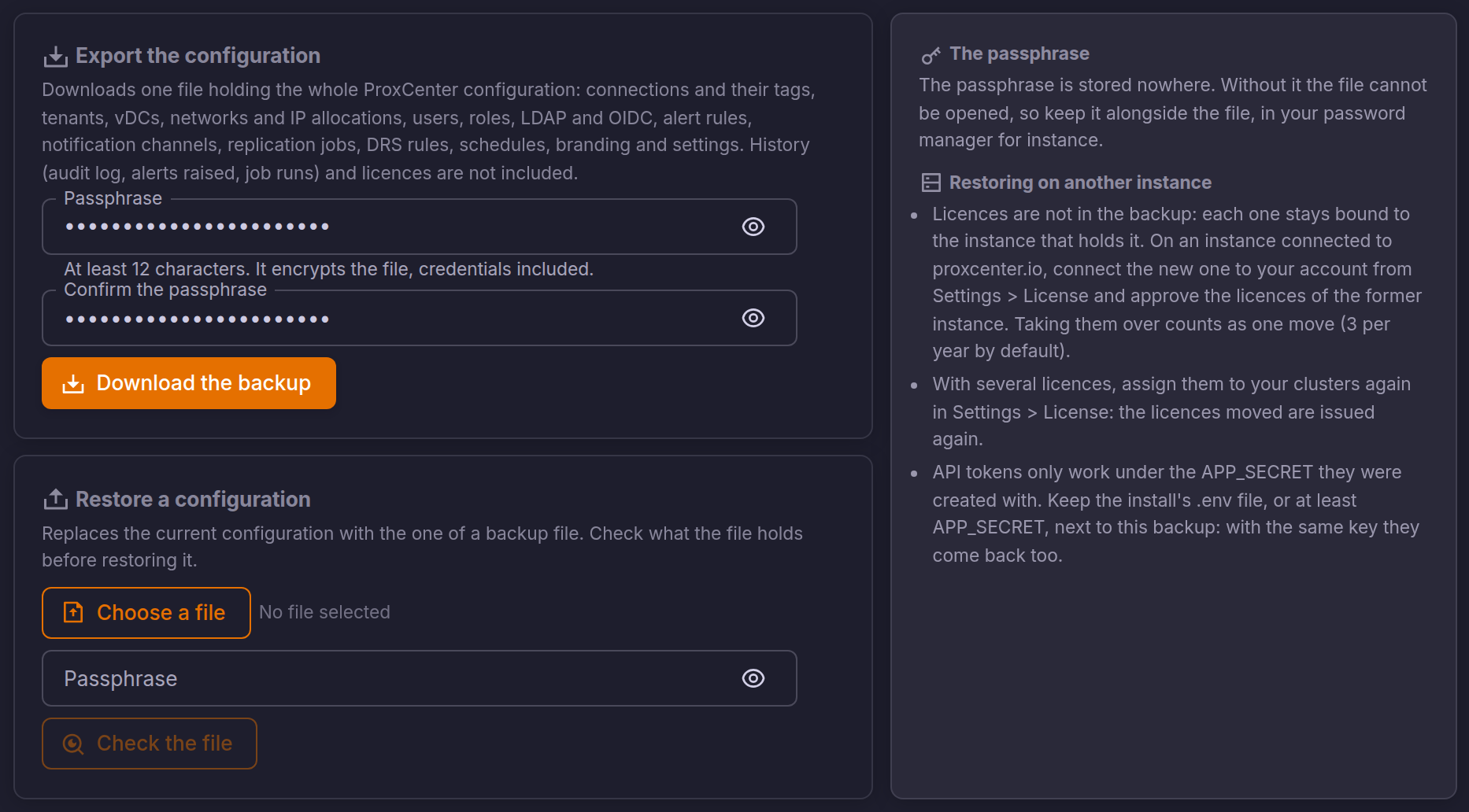
What the file holds
| Included | Left out |
|---|---|
| Connections and their tags, nodes and their SSH settings | History: audit log, alerts raised, job runs, metrics |
| Tenants, vDCs, networks and IP allocations | Licences |
| Users, roles, LDAP and OIDC | The instance identity and its proxcenter.io pairing |
| Alert rules, notification channels, report schedules | Runtime state: sessions, pending ACME challenges, locks |
| Replication jobs, DRS rules, schedules | |
| Image and blueprint catalogue, SLA policies and maintenance windows | |
| Branding, settings, dashboards and HTTPS certificates |
Credentials stored in the configuration (Proxmox tokens, LDAP and SMTP passwords, private keys) travel inside the file, encrypted under its passphrase.
Export the configuration
- Enter a passphrase of at least 12 characters, twice.
- Click Download the backup.
The browser downloads proxcenter-config-<date>.json. The file is encrypted with AES-256-GCM under a key derived from the passphrase (scrypt): only its format, date and ProxCenter version can be read without it.
The passphrase is stored nowhere. Without it the file cannot be opened, so keep it alongside the file, in your password manager for instance.
Restore a configuration
Restoring replaces the current configuration with the one in the file.
- Click Choose a file and pick the backup.
- Enter its passphrase and click Check the file. Nothing is changed yet: ProxCenter opens the file and shows what it holds.
- Read the summary, keep Download a backup of the current configuration first ticked, and click Restore this configuration.
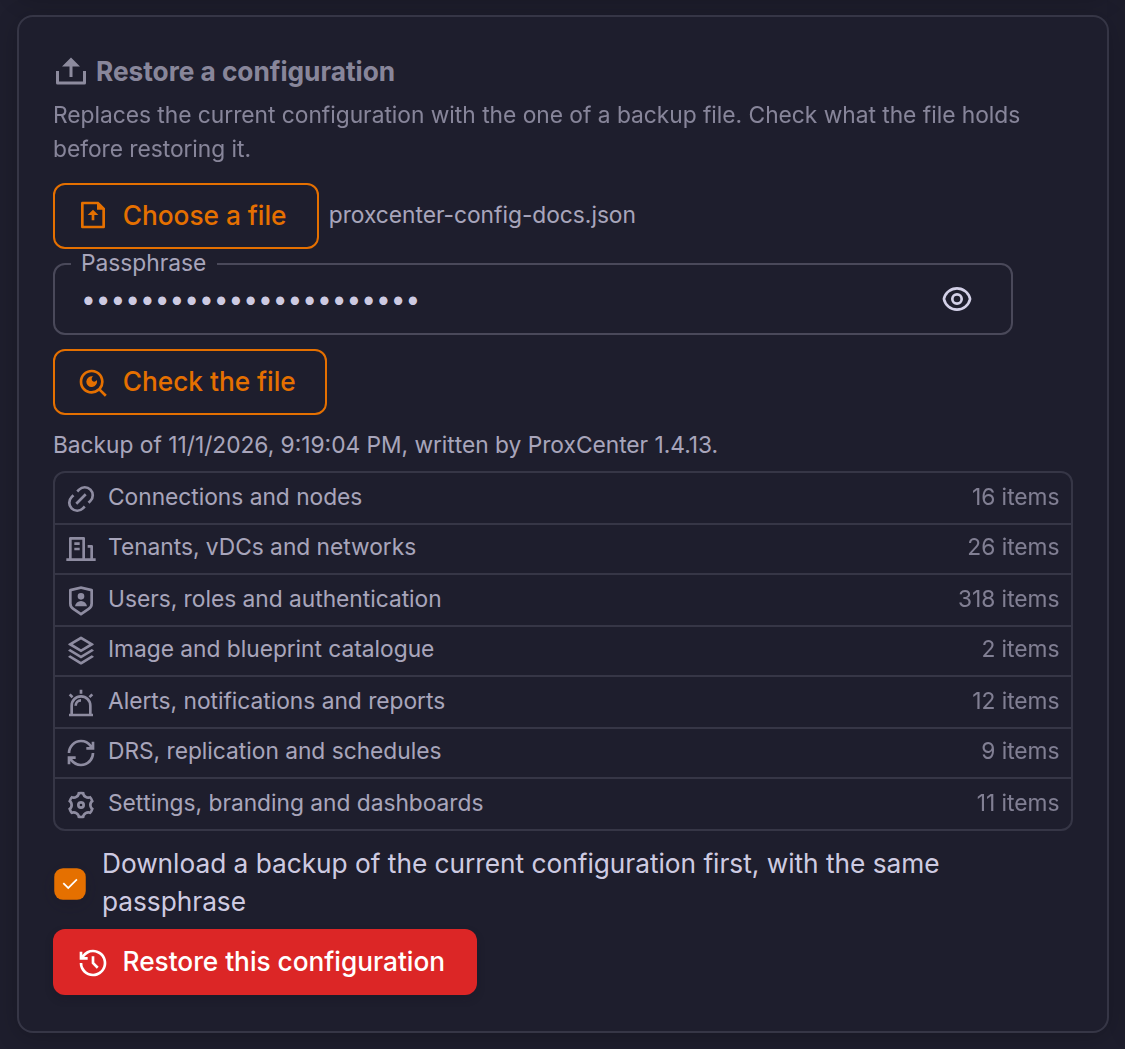
The restore runs in a single database transaction: it either completes or leaves the configuration as it was. A file written by a newer version of ProxCenter is refused; a file from an older version is accepted and the summary says so.
After the restore:
- Restart ProxCenter, frontend and orchestrator, so the orchestrator reloads the restored connections:
cd /opt/proxcenter && docker compose restart. - Replication jobs come back paused. Resume them from Site Recovery once you have checked the replication targets.
- Users the backup does not hold are signed out. The administrator who ran the restore stays signed in when restoring the same instance.
- Settings added by a newer release than the backup keep their default values.
Restoring on another instance
Install ProxCenter on the new server first, create its first account, then restore the file from that account.
- Licences are not in the backup: each one stays bound to the instance that holds it. On an instance connected to proxcenter.io, connect the new instance to your account from Settings > License and approve the licences of the former one. Taking them over counts as one move (3 per year by default), see Licensing.
- With several licences, assign them to your clusters again in Settings > License: the licences moved are issued again.
- Credentials are re-encrypted with the new instance's key, so connections, LDAP, SMTP and the other secrets work after the restore whatever
APP_SECRETthe new instance has. - API tokens are the exception: they only verify under the
APP_SECRETthey were created with. Keep the former install's/opt/proxcenter/.env, or at least itsAPP_SECRET, next to the backup and reuse it on the new instance to keep them. Otherwise the restore warns, and the tokens have to be created again.