Resources and Capacity
Infrastructure > Resources is a capacity cockpit: where the estate stands, what needs a decision, and how much room is left, per cluster, per node and per storage pool, with a forecast drawn from up to a year of history. It is an Enterprise feature, included with the Green IT metrics.
Pick All clusters or one cluster at the top left. The PDF icon at the top right downloads a capacity report built from the same figures, and the refresh icon reloads them.
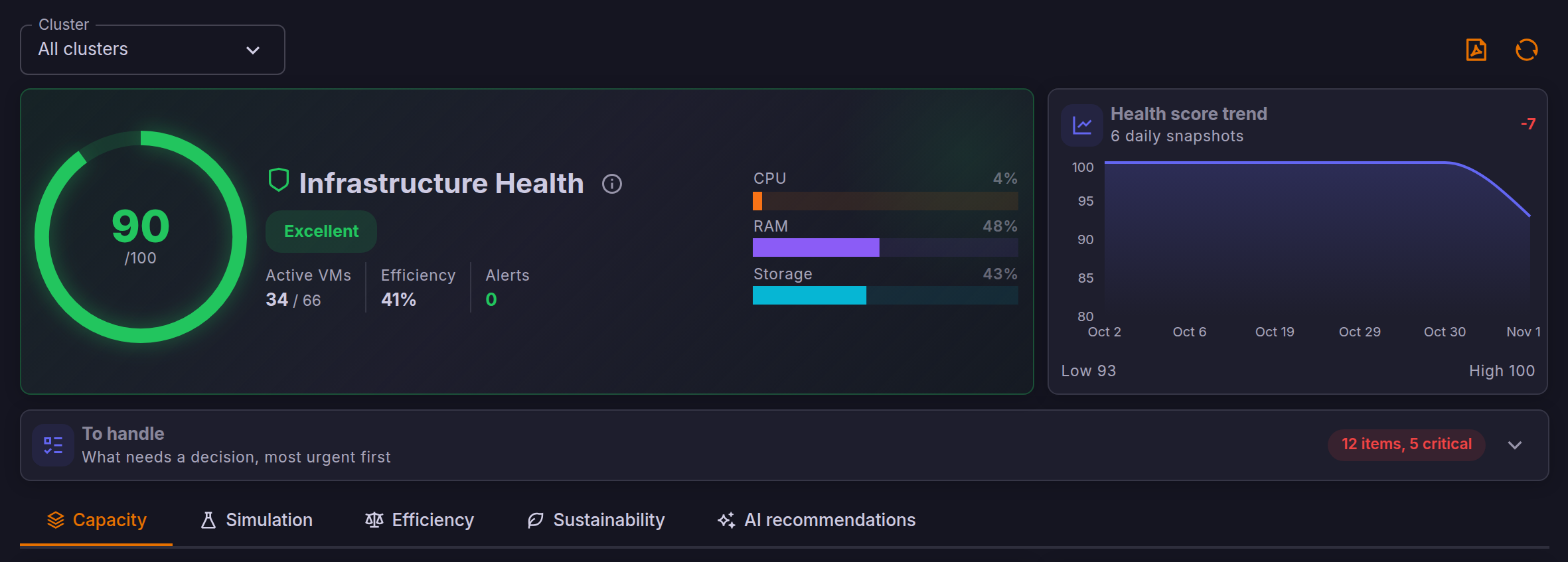
Health score
The score out of 100 sums up usage, efficiency and active alerts for the selected scope. Its trend card keeps one snapshot per day and per tenant, with the lowest and highest values of the period. The score and the To handle list use different rules: the score can read Excellent while the list holds critical items, so read both.
To handle
To handle lists what needs a decision, most urgent first. It is folded by default; its badge counts the items and the critical ones.
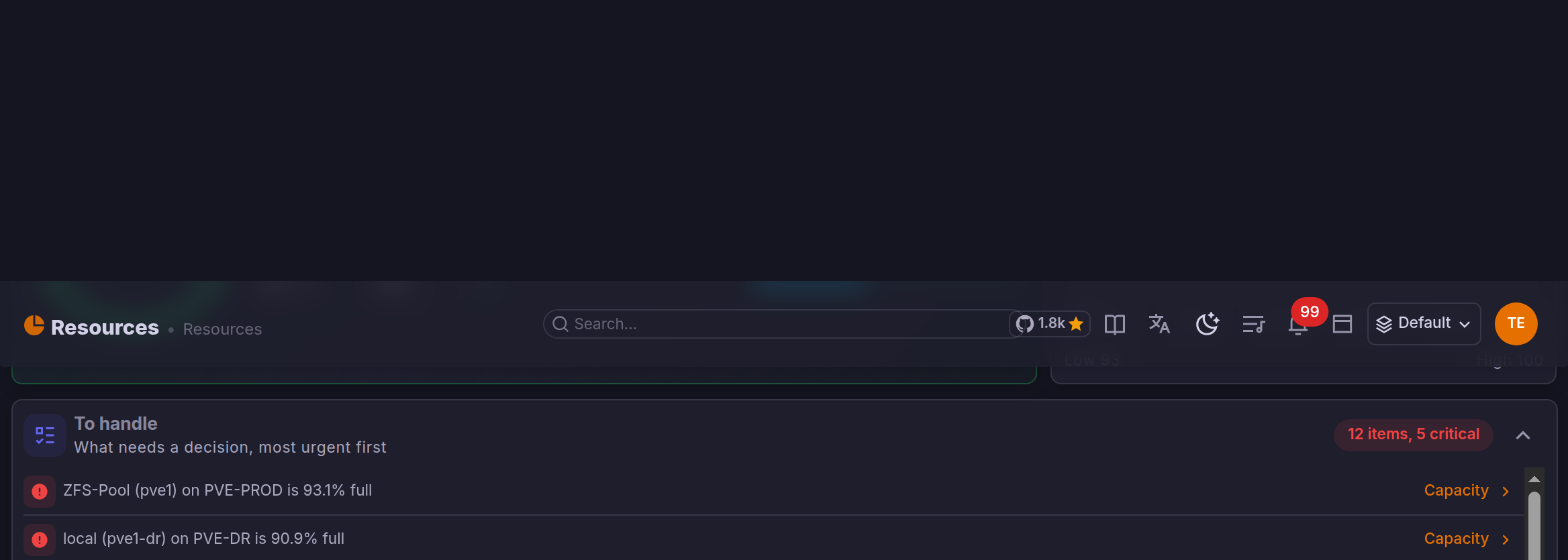
It raises, among others:
- a cluster that would not survive the loss of its largest node (N+1);
- clusters and storage pools over their threshold, or that reach it soon at their current growth;
- offline nodes;
- RAM unevenly spread across the nodes of a cluster;
- allocation held by guests that have been idle for a long time.
Thresholds come from Settings > Alert thresholds.
Capacity
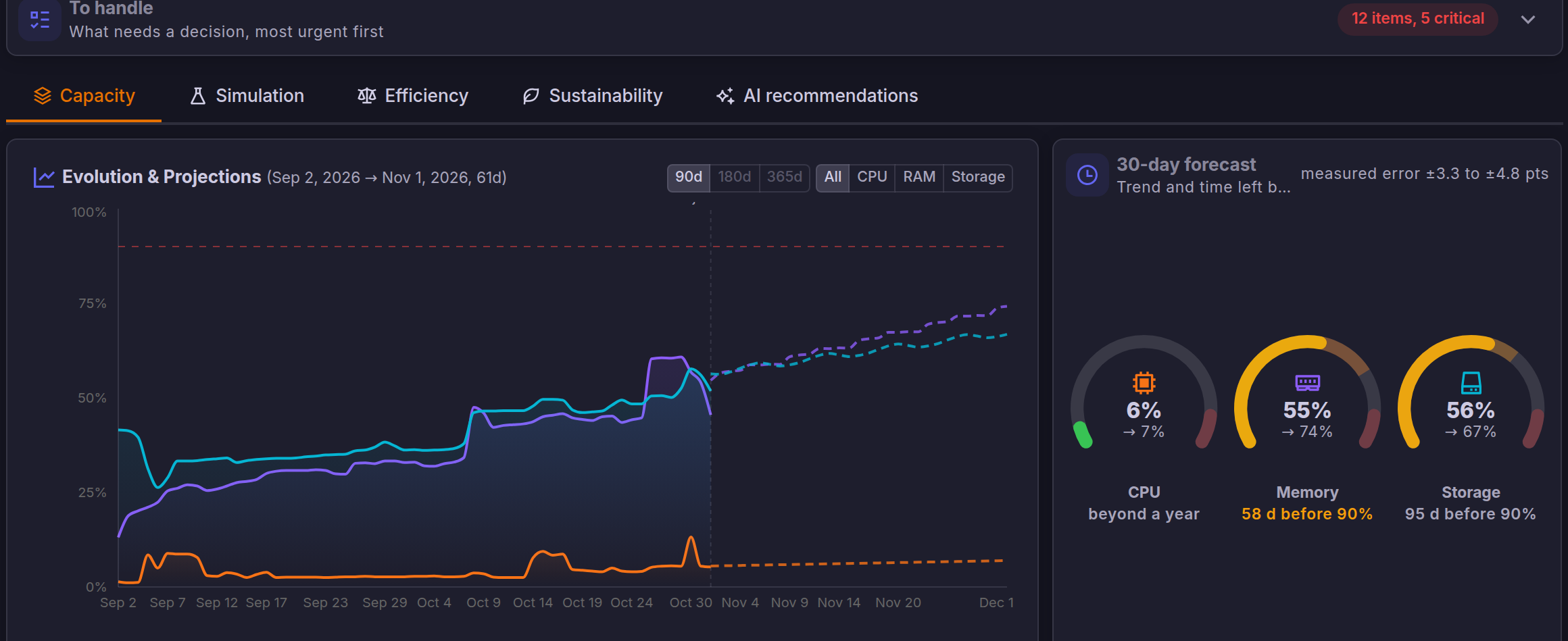
Evolution & Projections draws CPU, RAM and storage usage and extends them as dashed lines. The 90d, 180d and 365d buttons pick how much history feeds the forecast; switching does not query Proxmox again, and the choice is remembered per browser. A window longer than the available history is greyed out, with the number of days available in its tooltip, and the chart header shows the range it actually uses. On Proxmox VE 9, the yearly history holds about 360 days.
The 30-day forecast shows, for each resource, today's usage, its value in 30 days and the time left before the critical threshold, up to a year ahead. The forecast weights the last 30 days more than older ones, starts from the median of the last three days so that a one-day spike does not move it, and follows the weekly pattern. Its measured error is obtained by rerunning the forecast from past days and comparing it with what really happened.
Below the charts, the tab breaks capacity down per cluster (usage, vCPU:pCPU ratio, N+1, imbalance and runway), per node (load and allocation) and per storage pool (usage and growth). A shared pool is counted once per cluster, a local pool once per node.
The AI forecast reading puts the figures into words. It uses the provider set in AI Insights, and falls back to a rule-based reading without one. The model only ranks and words what the platform computed: every figure comes from the calculation, and it cannot rate a risk lower than the rules do.
Simulation
The what-if simulator tests a growth or a failure on one cluster before it happens.
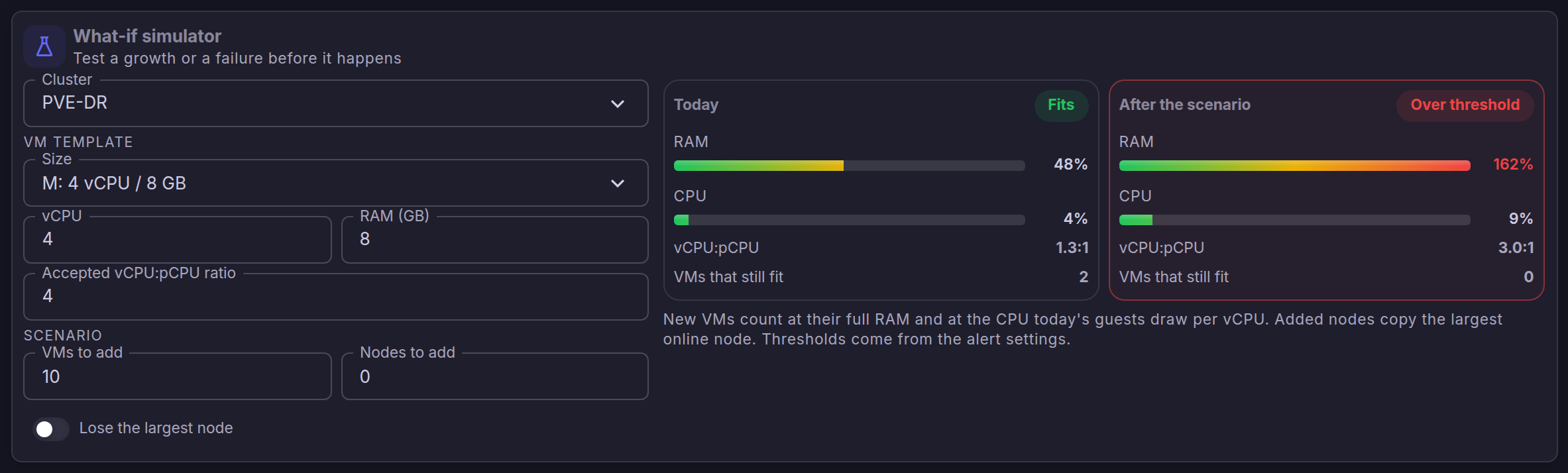
Choose a VM size, the vCPU:pCPU ratio you accept, then the scenario: VMs to add, nodes to add, and Lose the largest node. New VMs count at their full RAM and at the CPU today's guests draw per vCPU; added nodes copy the largest online node.
Efficiency
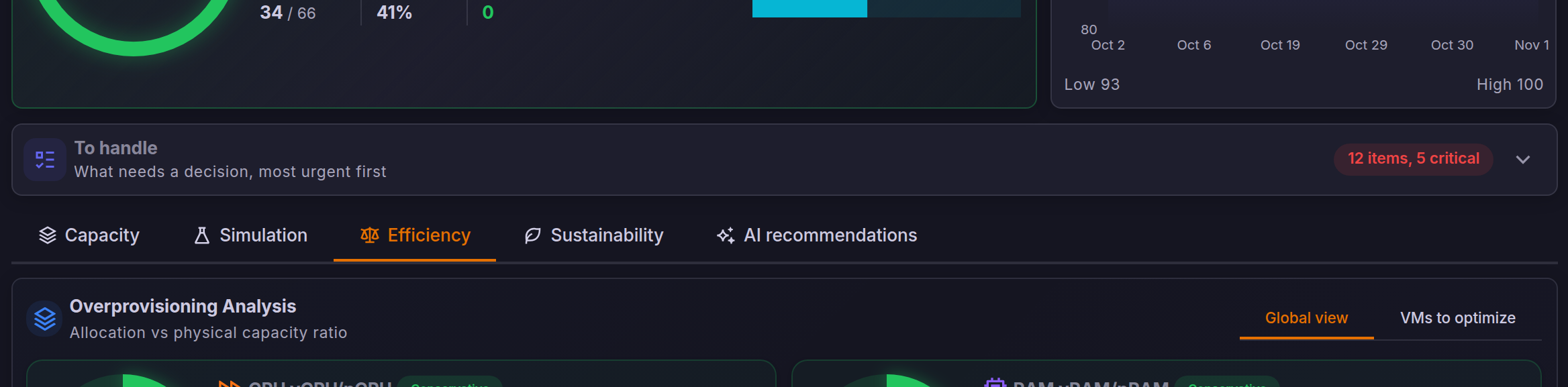
The tab compares what guests are allocated with the physical capacity and with what they really use, lists the VMs to rightsize and the top consumers, and shows the network throughput.
Sustainability and AI recommendations
Sustainability shows the energy, carbon and cost figures described in Datacenters and Green IT.
AI recommendations builds an optimization plan from the same figures, with the provider set in AI Insights. The model is called only when the tab is opened, its reading is kept 15 minutes per scope and language, and items the model leaves out are added back.