Recovery Plans and Test Failover
Recovery Plans define the procedure for restoring services on a target cluster. The tab lists all existing plans and lets you create new ones.

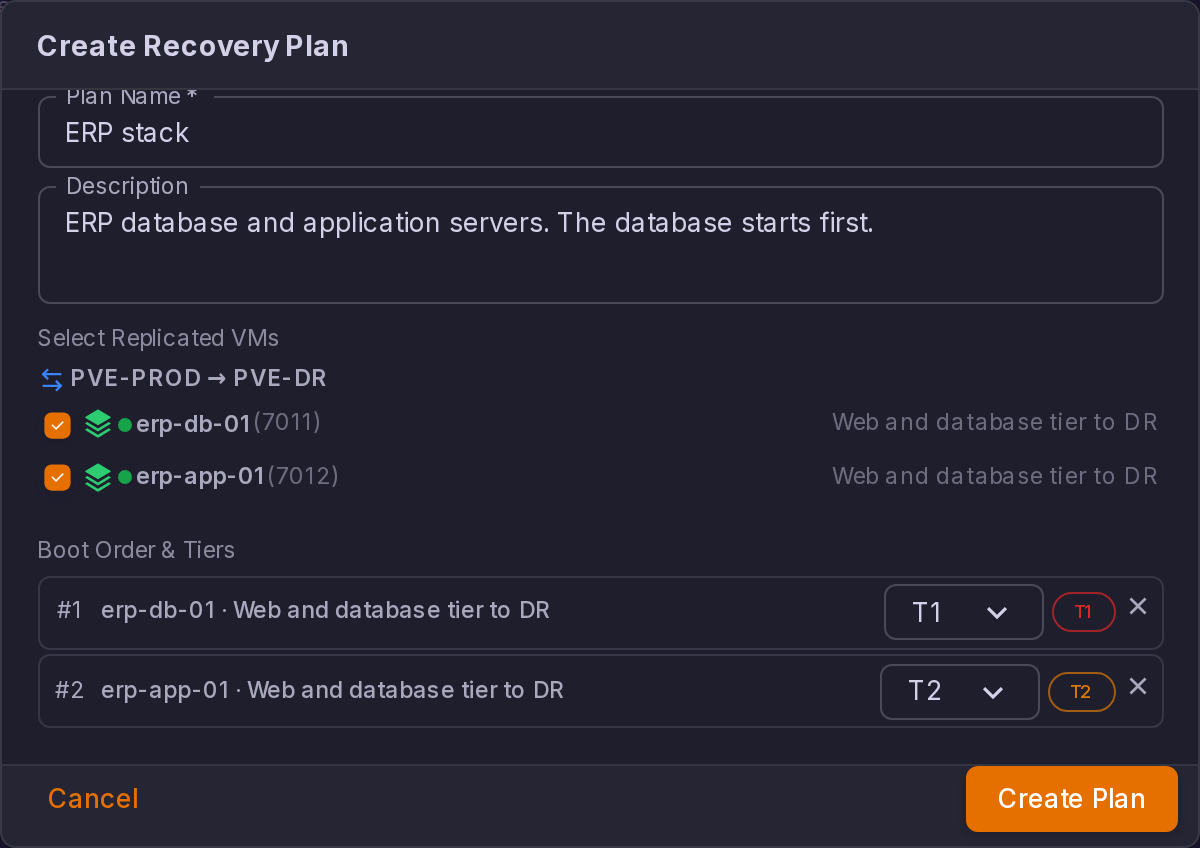
Creating a Recovery Plan
Click Create Plan to define:
- Plan name and description
- Source and target clusters
- Associated replication jobs -- which replication jobs feed into this plan
- VM startup order and dependencies
An existing plan is edited from the same form, prefilled. Editing is disabled while the plan is executing, failing back or failed over.
Recovery Plan Operations
Each recovery plan supports three operations:
| Operation | Description |
|---|---|
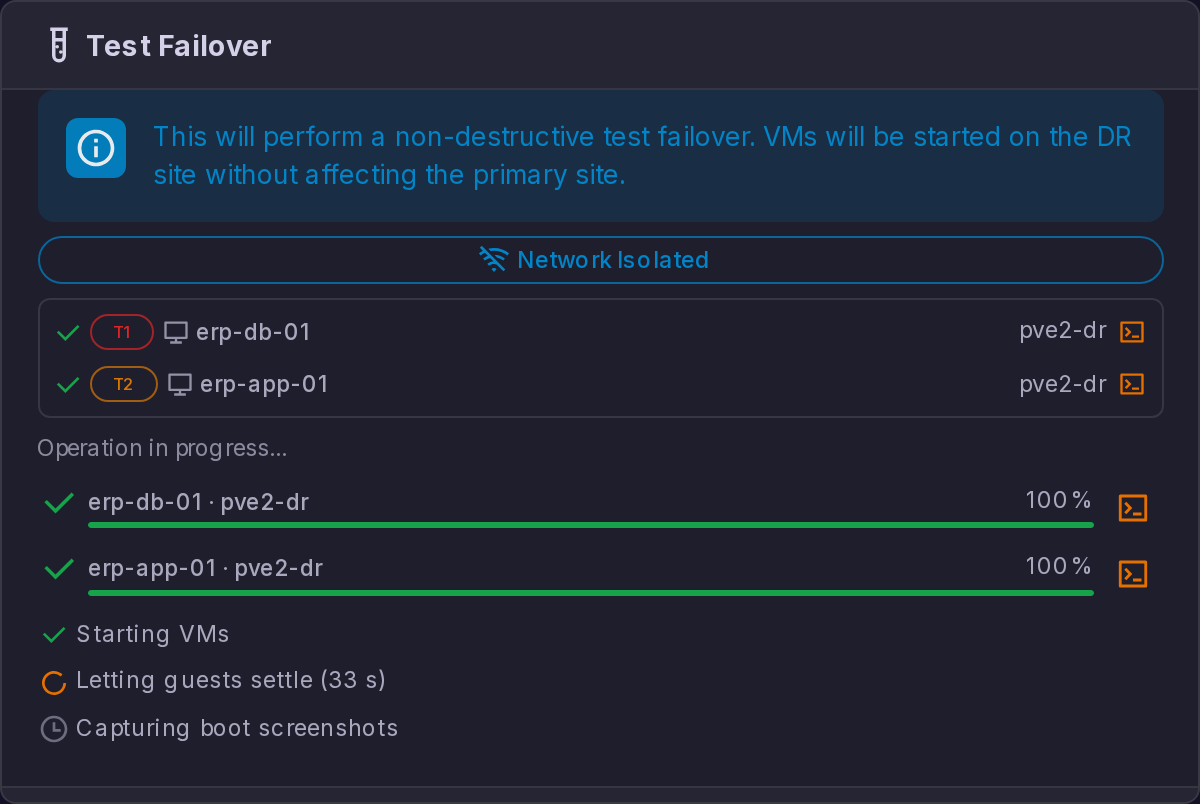
| Test Failover | Executes the recovery plan on the DR cluster, by default with every network interface shut down. Production workloads are not affected, and the source VMs are left alone. Each recovered VM's console is captured while the test runs. Two options are offered before the run starts, see Test Failover Options. Use this to validate your DR strategy regularly. |
| Failover | Activates the recovery plan for real. The source VMs are fenced, then the replicas are started on the DR cluster from the chosen restore point. Use this during an actual disaster. |
| Failback | Available once a plan is failed over. It brings the workloads home in two phases: a reverse incremental sync from the DR site to the source, then an operator-driven cutover. See Failback. |
When any operation is executed, ProxCenter tracks its progress in real time, polling the execution status every 3 seconds and displaying step-by-step updates. During a real failover and during a failback cutover, each VM also shows the step it is on: Stopping the source VM, Rolling back to the selected restore point, Starting on the DR site, and for the failback cutover Stopping the DR VM, Applying the final delta, Starting on the source site and Re-protecting. The step is shown while the VM is running that step; a VM that has finished shows its result, and a VM that failed shows its error instead.
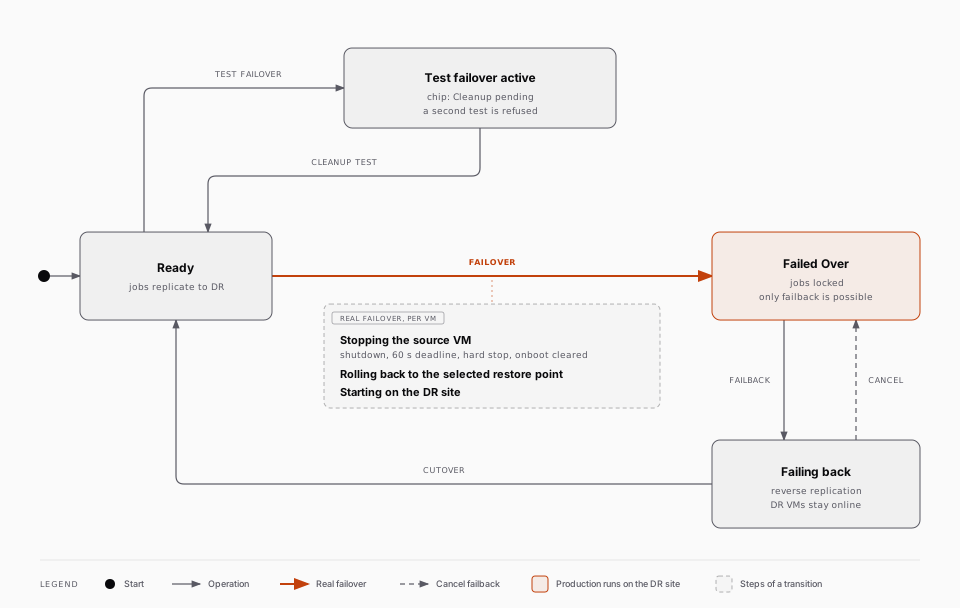
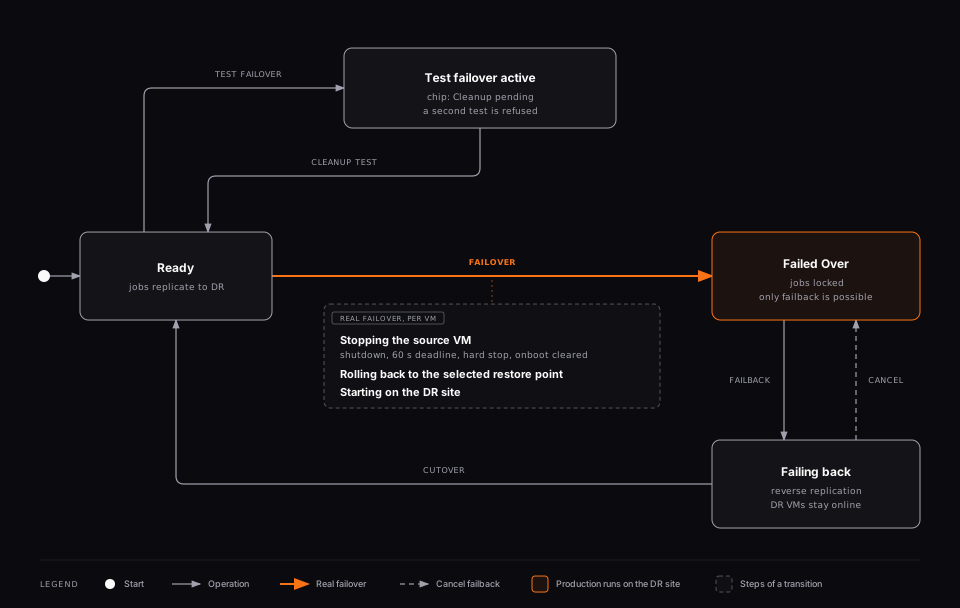
Failover is a disruptive operation. Ensure the source site is truly unavailable before initiating a production failover, as running the same VMs on both sites simultaneously can cause data corruption.
A test failover does not report per-VM steps. It reports progress per VM and, in its final phase, a three-step checklist for the console captures: Starting VMs, Letting guests settle and Capturing boot screenshots.
What a Test Failover Does to Replication
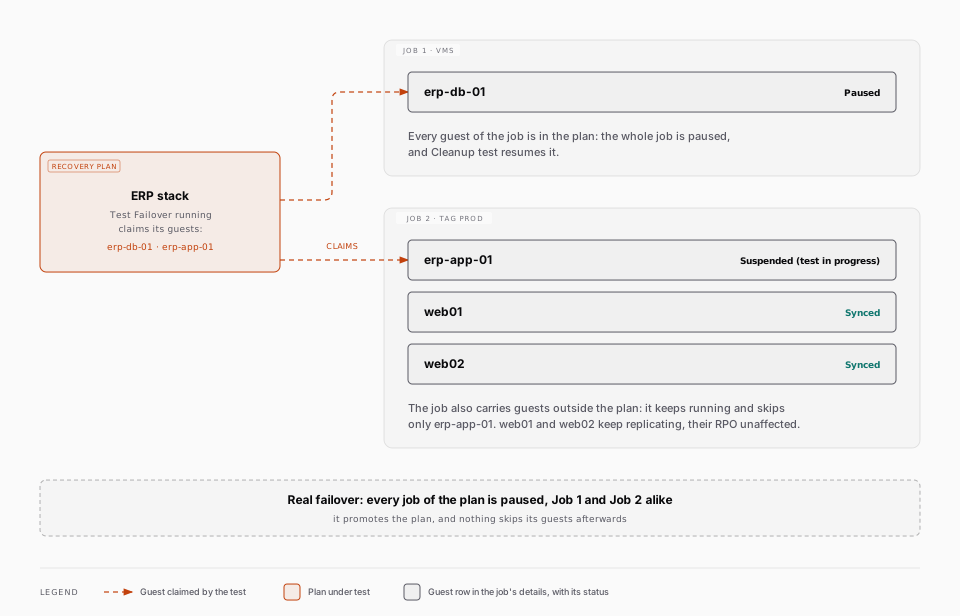
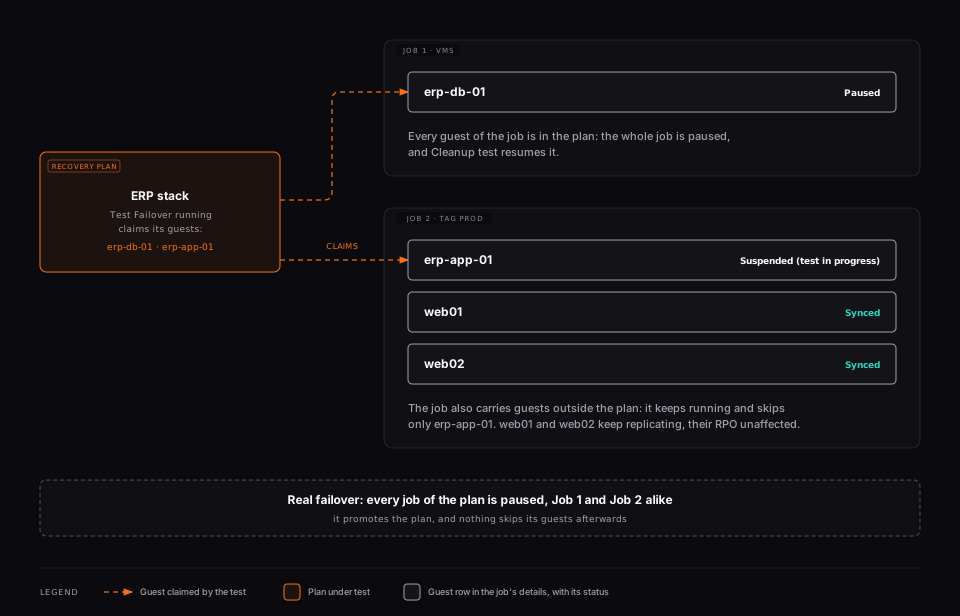
A guest whose replica is under test cannot be replicated onto at the same time: the test runs on the very images the next sync would overwrite. Site Recovery therefore claims the guests of the plan, not the jobs behind them:
- A job whose guests are all covered by the plan is paused outright for the length of the test, and the cleanup resumes it.
- A job that also carries guests outside the plan keeps running and skips only the claimed ones. Its other guests keep replicating and their RPO is unaffected.
A claimed guest is reported as Suspended (test in progress) on its row in the job's details, so a row that stops advancing says why instead of merely looking stale. The claim is read off the plan rather than recorded on the job, so the cleanup releases it by clearing the active execution, with nothing to resume.
Why claiming per guest matters most on a tag-based job
A tag-based job routinely covers far more than a plan does, so claiming per guest keeps every other guest it carries protected for the whole length of the test. Claiming per guest is also the only mechanism that can cover a tag-based job at all, since its own VMID list is written at the end of a run and therefore always lags.
A real failover still pauses the jobs unconditionally. It promotes the plan, and nothing skips its guests afterwards.
Restore Points
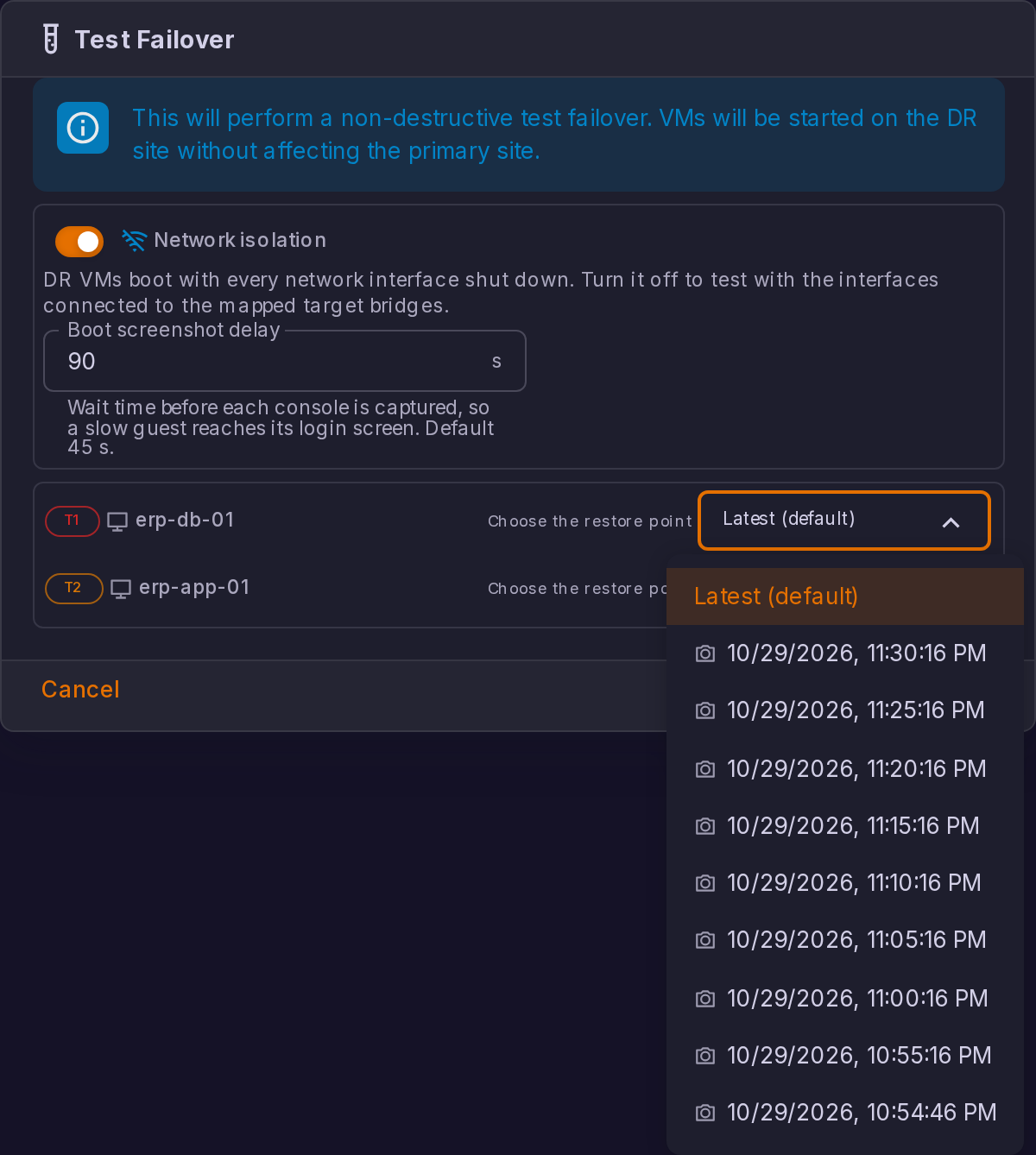
By default a failover boots each VM from the latest replicated state. Both Test Failover and Failover let you pick an older point instead, per VM, from a Choose the restore point selector on each VM row of the dialog. The default entry is Latest (default); the other entries are the replicated snapshots that still exist on the DR side, newest first, shown with their timestamp.
The list is read from the live state of the DR cluster each time the dialog opens, and only snapshots present on every disk of a VM are offered, so a partially failed sync cannot boot a torn VM. A VM with nothing to offer shows No restore points. When the list cannot be read at all, the dialog says "Restore points could not be loaded, the latest replicated state will be used." and runs on the latest state.
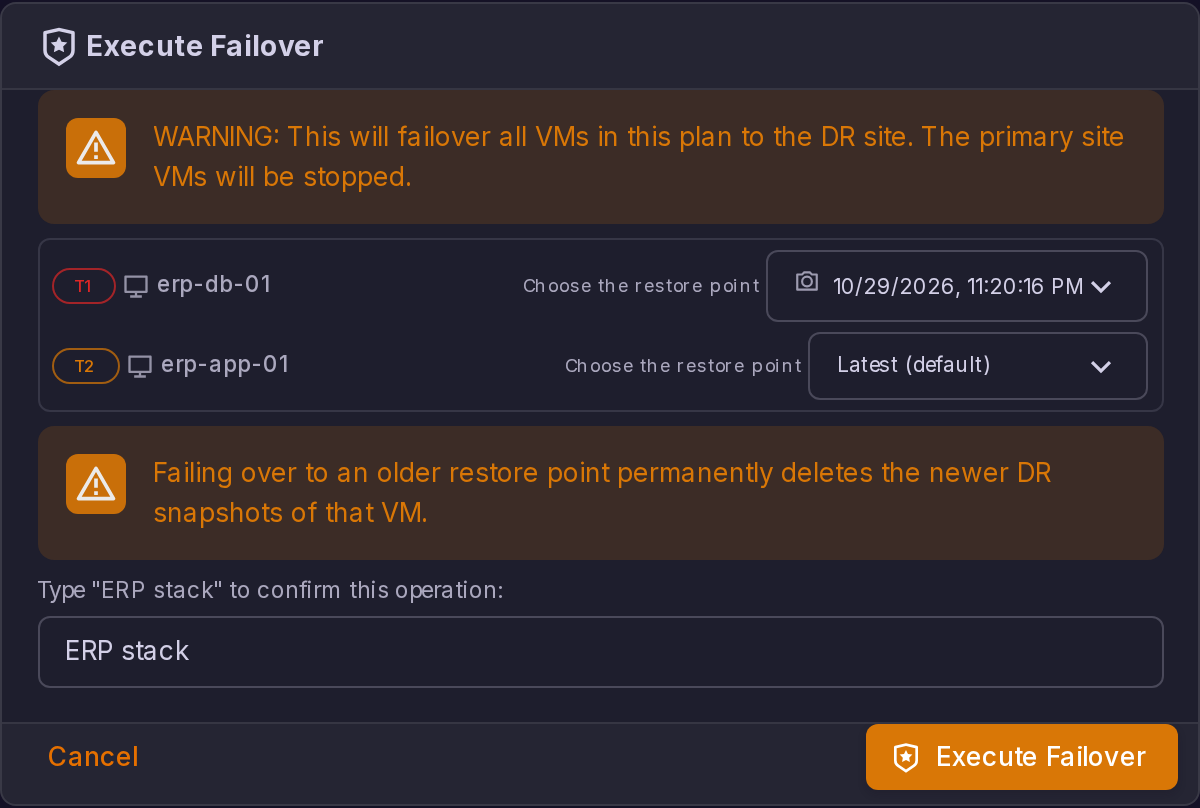
Choosing an older point on a real failover re-bases the DR image: "Failing over to an older restore point permanently deletes the newer DR snapshots of that VM." The dialog shows that warning as soon as you select a point. A test failover does not re-base, and its cleanup rolls the image forward again, so testing an older point costs you nothing.
Test Failover Options
The Test Failover dialog carries two settings, in a panel above the VM list. They are editable until you press the button that starts the run, and they apply to that run only: nothing is stored on the plan.
| Option | Default | What it does |
|---|---|---|
| Network isolation | On | Every network interface of every recovered VM gets link_down=1 before the VM is started, so the replica boots with its cards administratively down. The interfaces themselves are kept, so nothing about the guest's networking is lost, and the flag disappears on its own at the next sync, which rewrites the replica configuration from the source. |
| Boot screenshot delay | 45 s | How long ProxCenter waits after the last VM has started before capturing the consoles. Accepts a whole number of seconds between 5 and 600. |
Turning network isolation off. The switch is labelled "DR VMs boot with every network interface shut down. Turn it off to test with the interfaces connected to the mapped target bridges." Turning it off raises a warning in the dialog, on the spot:
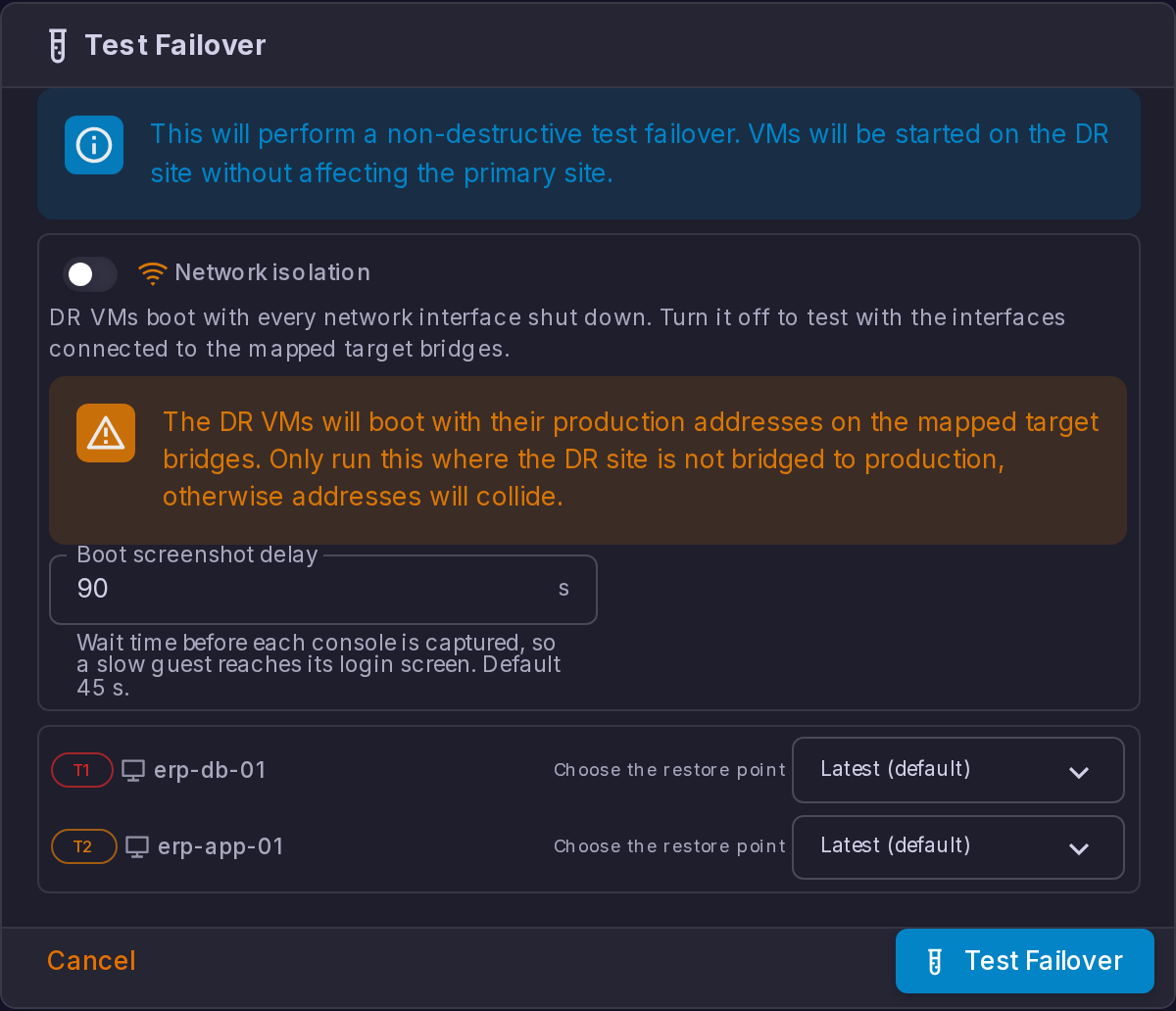
"The DR VMs will boot with their production addresses on the mapped target bridges. Only run this where the DR site is not bridged to production, otherwise addresses will collide."
A replica carries the source guest's network configuration verbatim, MAC address and bridge name included, so it comes up on the DR cluster's bridge of that name with the production addresses of the guest it copies. If that bridge reaches the production network, two machines with the same address land on the same wire. Run a connected test only on a DR site that is genuinely separated from production, and use it for what isolation cannot answer: whether the application actually serves, not merely whether the guest reaches a login prompt.
Once the run has started, the option it used is no longer editable but stays visible: a chip on the dialog reads Network Isolated or Network connected, so an execution you come back to never leaves you guessing which mode it ran in.
Choosing a delay. 45 seconds is enough for a guest that reaches a login prompt quickly, and too short for a large Windows guest or anything that runs filesystem checks at boot: those get photographed mid-boot. Raise the delay to whatever your slowest guest in the plan needs. The value applies to the whole pass, not per VM, since the wait happens once after all the VMs have started. An empty field, a decimal, or a value outside the 5 to 600 range is refused and the run is blocked until you fix it.
A real failover is never network isolated and takes no such options: it starts the replicas with their interfaces connected, which is the point.
Boot Screenshots on a Test Failover
During a test failover, ProxCenter captures the console of each recovered VM and keeps the image with the execution, so you can see what a guest actually booted into instead of trusting a power state. The capture itself is automatic: there is no switch to turn it on, only the delay described above.
The capture pass runs once, after every VM of the plan has been started. ProxCenter waits for the boot screenshot delay of that execution, 45 seconds unless you changed it, then takes exactly one capture per VM. The dialog shows the wait as a countdown next to Letting guests settle, and the countdown follows the delay you chose.
The captures appear as small thumbnails in two places, both on the Recovery Plans tab: under the corresponding test execution in the plan's Execution History, and as a camera button on each VM row of the test failover dialog, labelled View boot screenshot. Clicking a thumbnail opens the full-size image with the VM name and the time it was captured.
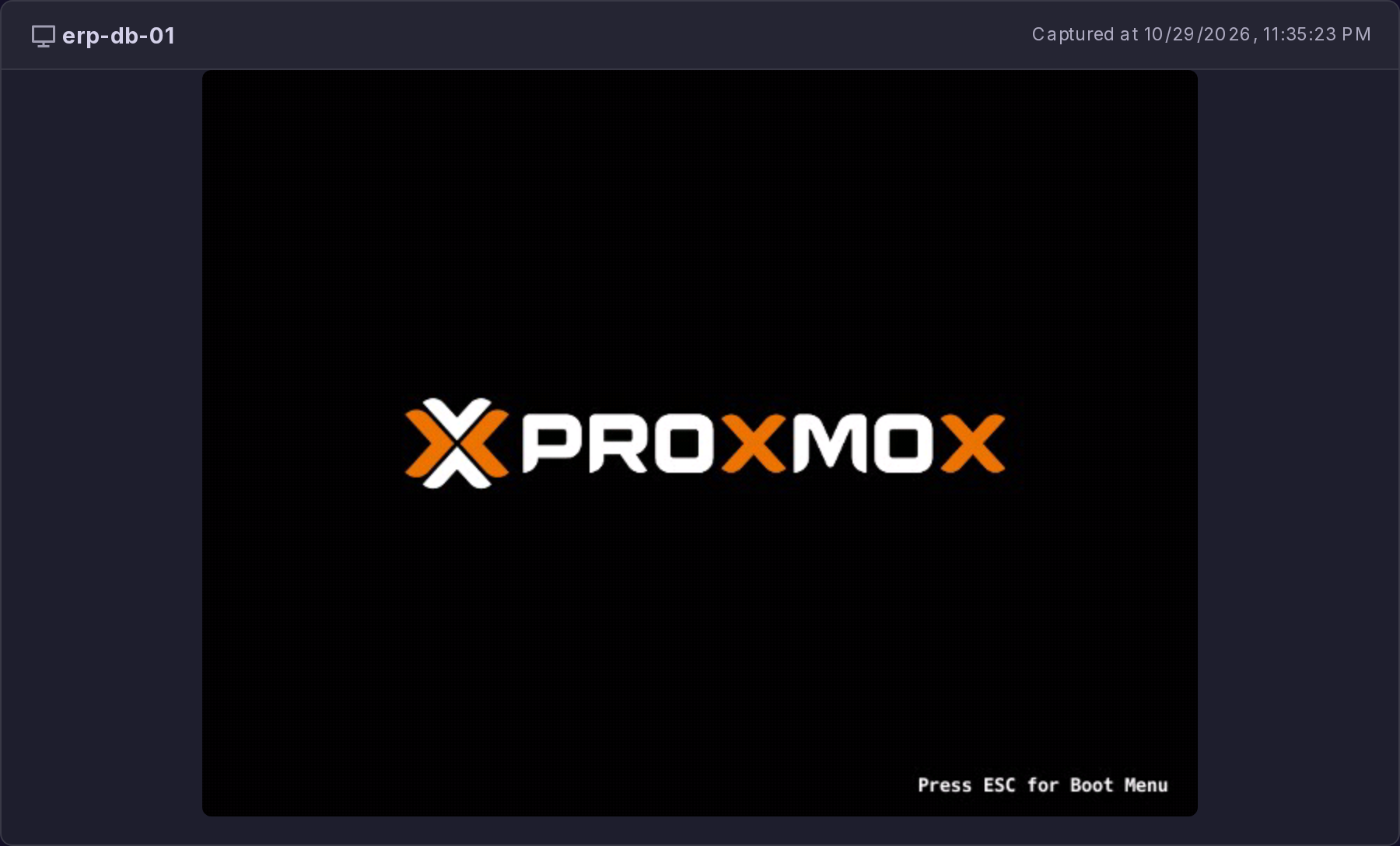
Captures need the orchestrator and SSH access to the DR cluster, they only work for QEMU virtual machines, and they need a guest with an emulated display: a serial-console-only guest produces nothing. A capture that does not succeed is skipped silently. It does not fail the test and it produces no error message, so the only sign is a missing thumbnail. A capture is also only attempted when at least one VM of the plan actually reached a completed state.
Running Cleanup test does not delete the captures: they are kept as the archived evidence of the test. They are removed only when you clear the plan's execution history or delete the plan itself.
Source Fencing on a Real Failover
A real failover fences each source VM before starting its replica, so the same guest cannot end up running on both sides. Fencing means, in order: a graceful shutdown request with a 60 second deadline, a hard stop if the guest has not stopped by then, and finally clearing onboot in the source VM's configuration so a recovering source site cannot boot the guest back into a split brain. This is unconditional on a real failover and never happens on a test failover. There is no option to turn it off.
A real failover is a disaster procedure, so it does not stop when fencing cannot be carried out. If the source cluster is unreachable, fencing is skipped for the whole failover and the DR replicas are started anyway; the orchestrator log records that it skipped it. Treat fencing as a safety net that usually works, not as a guarantee: if the source site is only partly down, confirm the source guests really are stopped before you let the site come back.
Locked After a Failover
Once a plan is failed over, ProxCenter locks it and its replication jobs so nothing can overwrite the copy that is now production. The plan carries a Failed Over status and the tooltip "Plan is failed over -- only failback is possible.", with Test Failover and Failover disabled. Each replication job of that plan carries a Failed over chip, and its tooltip explains that the job's DR copy is now production and that resuming replication would overwrite it, so a failback has to come first. Sync Now, Resume and Edit are disabled on that job. Deleting is still allowed.
The lock is released per job by the failback, once every VM of that job has completed its cutover.
Test Cleanup
After running a test failover, use the Cleanup test action to tear down the test environment and release resources on the target cluster. This ensures that test artifacts do not consume storage or interfere with future tests. While a test is awaiting cleanup, the plan row shows a Cleanup pending chip, a second test failover is refused with "A test failover is already active for this plan. Clean it up first.", and reopening the dialog shows a banner naming the date the pending test was started.
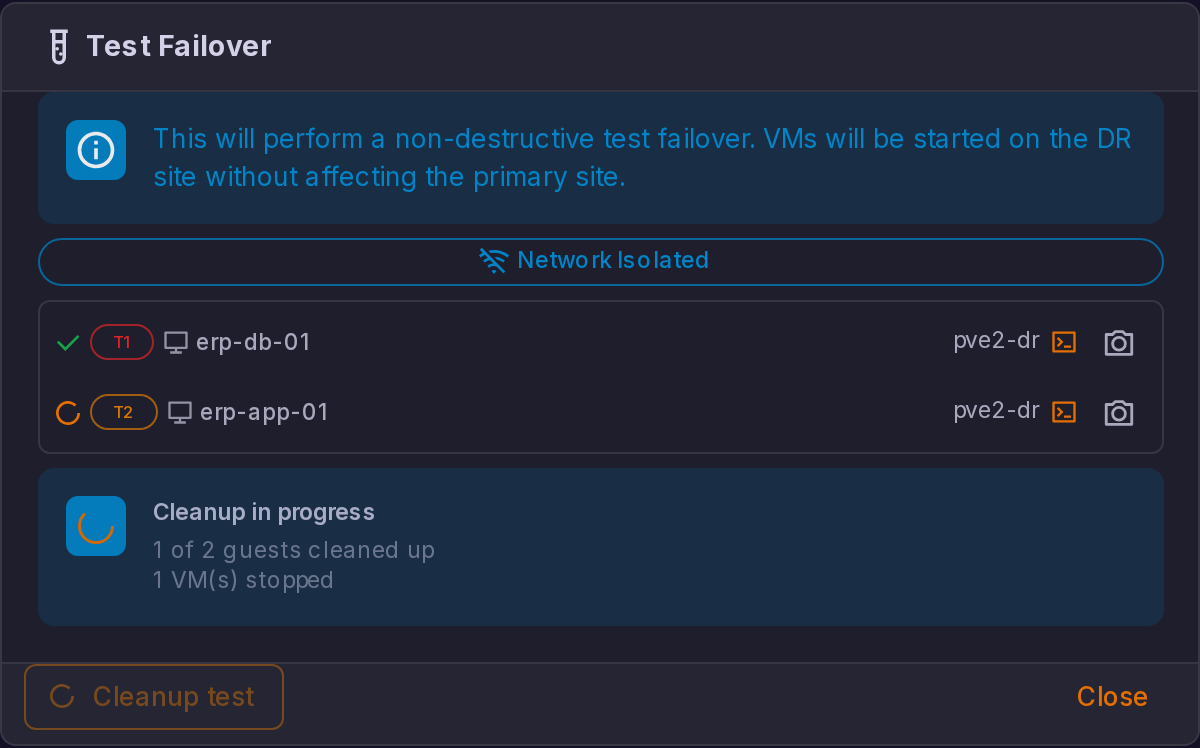
The dialog reads the orchestrator's own verdict, not the absence of errors. A cleanup cut off halfway comes back as Cleanup did not complete, with "The cleanup could not be completed, the DR guests may still be running on the replica images", and it keeps its retry button until everything really is cleaned. Only a run the orchestrator reports as complete shows Cleanup completed. Press retry until it does: an unfinished cleanup means DR guests are still up on the replica images, and replication is about to resume onto them.
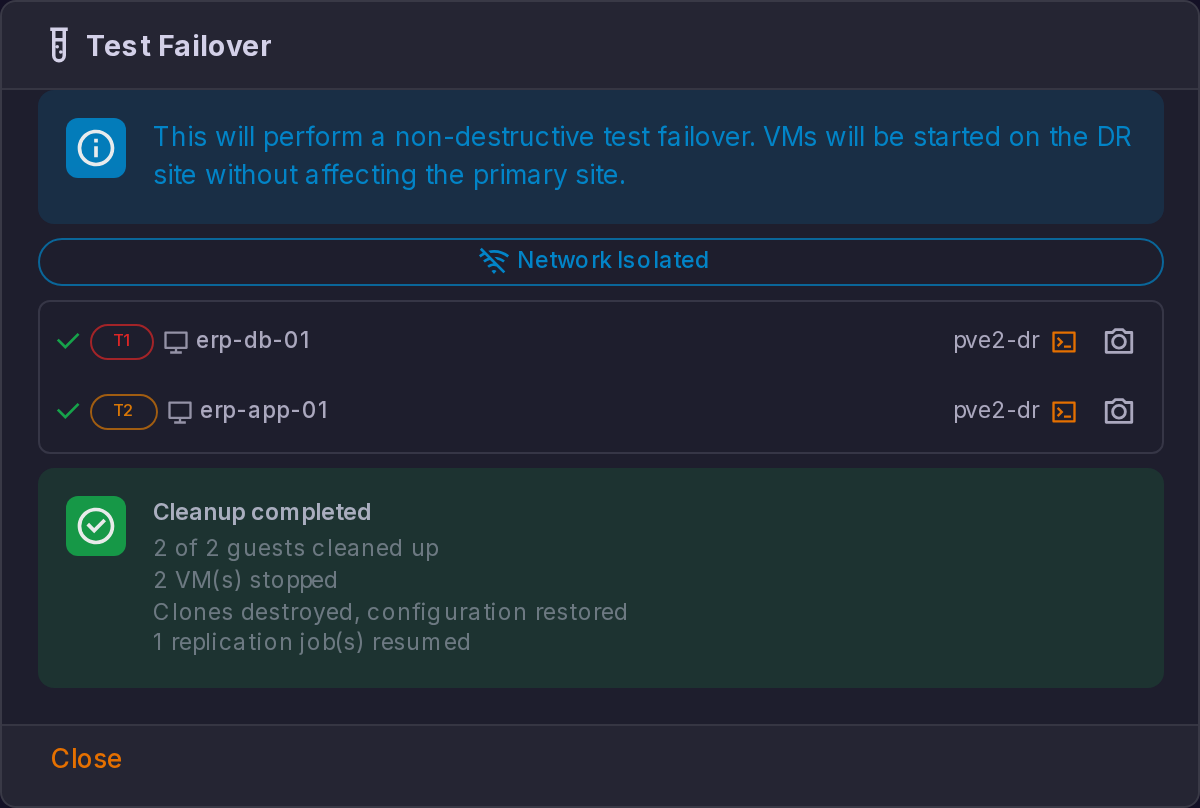
A cleanup handles the guests one after another, around twenty seconds each for a single-disk guest, and is given 55 seconds per attempt. That budget sits deliberately under the 60 second read timeout a packaged install's reverse proxy applies, so an expiry comes back as a ProxCenter error you can act on rather than as a proxy error page. A plan of several guests may therefore need more than one pass, which is what the retry button is for.
DR replicas are not enrolled in automatic HA either. A replica reaches its target cluster as a brand new guest, and handing it to the cluster resource manager in the started state would override the onboot: 0 its configuration carries on purpose and undo every stop the cleanup issues.
Execution History
Select a recovery plan to view its execution history -- a chronological list of all test, failover, and failback operations with their outcomes, timestamps, and any errors encountered. Test executions also show their boot screenshot thumbnails.
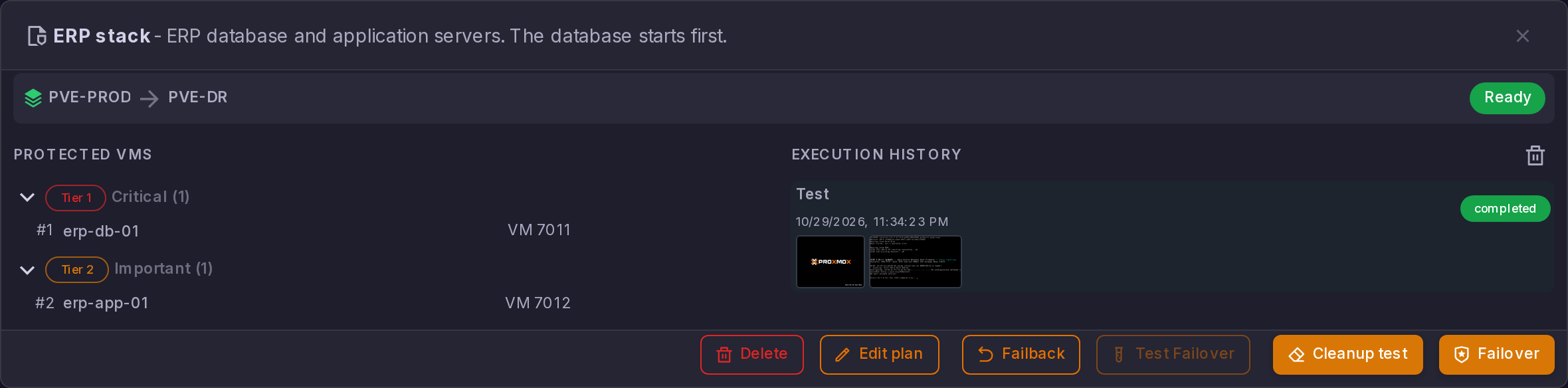
A Clear history action removes the past executions of the plan. It asks for confirmation first, because "Boot screenshots are deleted with them."; the active test execution is kept.