Warm Migration
Warm migration copies a running VMware or XCP-ng guest while it keeps serving, then stops it only for a short cutover. This page covers what the source needs, the phases of a run, when and how the cutover happens, and the waits on the source.
What the Source Needs
Warm migration keeps the source VM online only when changed block tracking (CBT) can be used on it. What that takes depends on the source.
- VMware
- XCP-ng
CBT is available when all of the following are true:
- The VM has no pre-existing snapshots. ProxCenter needs to establish the initial CBT baseline, and VMware only provides a reliable one on a snapshot-free VM.
- The virtual hardware version is vmx-07 or newer.
- No disk is in independent mode and no disk uses multi-writer sharing.
ProxCenter enables CBT on the source VM when needed, then disables it afterward if the migration enabled it. If CBT was already enabled, ProxCenter leaves it enabled. Check the job log for cleanup warnings if the source cannot be reached afterward.
The target Proxmox node also needs Proxmox VE 9 and the VDDK runtime, see Warm Migration Node Setup.
Warm migration from XCP-ng is only available through a direct pool connection. A Xen Orchestra connection can run offline migration only, since it has no direct access to the pool's XAPI. See XCP-ng and Xen Orchestra connections for the two connection modes. It needs:
- A direct pool connection. Warm migration is rejected on a Xen Orchestra connection.
- A block-storage target on Proxmox: LVM, LVM-Thin, ZFS or Ceph RBD.
- NBD enabled on the pool, once, on a network:
xe network-param-add uuid=<network uuid> param-name=purpose param-key=nbd. The management network works for this. The migrate dialog's preflight reports it when it is missing. - Network access from the Proxmox node to the XCP-ng hosts, on TCP 443 and TCP 10809.
nbdkit,nbd-clientandlibnbd(nbdinfo) installed on the Proxmox node:apt install nbdkit nbd-client libnbd-bin. No VDDK is needed for this path; the preflight checks for these tools instead.
Changed block tracking on XCP-ng needs a VHD-based storage repository: ext, nfs, lvm, lvmoiscsi, lvmohba or smb. On any other storage repository type, the migration falls back to the checksum mode.
No guest adaptation happens on this path, as on the VMware warm path: a Windows guest still gets an e1000 NIC and a SATA boot disk, the same guest hardware mapping used by the rest of the warm and XCP-ng pipelines.
How the XCP-ng path reads the disks
The mechanics mirror the VMware warm path: the source VM keeps running while ProxCenter makes a first full copy of a live snapshot's allocated blocks, then re-syncs the changed blocks in further passes using XCP-ng changed block tracking (VDI.enable_cbt, and VDI.list_changed_blocks between two consecutive snapshots). The same downtime budget and cutover choice apply as on the VMware warm path, see Choosing the cutover moment: a clean guest shutdown, a last delta, and the target VM created and started. See Warm Migration Phases and Progress for how a run reports itself.
Disk data is read from the XCP-ng NBD export of the snapshot, over TLS on port 10809, with the host certificate pinned from the XAPI session; there is no VDDK on this path.
Warm transfer snapshots on XCP-ng are created with the same proxcenter-warm- name prefix as the VMware path. They are removed as the run progresses, and cleanup removes any that remain on the source VM if the job fails.
CBT Requirements and the Checksum Fallback
When CBT cannot be used, the migration automatically falls back to a checksum block-diff. The fallback is lossless, but its behavior differs from the CBT path in two important ways:
- The source VM is shut down at the very start of the copy, not at cutover, and stays powered off until the migration completes. Downtime therefore scales with total disk size, instead of the short final-delta cutover of the CBT path.
- Before any data is copied, ProxCenter reads each disk in full on both the source and the target to compute block checksums. On large disks this scan phase alone can take a long time.
- VMware
- XCP-ng
The job log states which mode is in use: when the fallback is selected, a warning line reading CBT unavailable (pre-existing snapshot) - using checksum block-diff fallback appears at the start of the migration.
The warning also arrives before you start. Selecting warm mode for a VM that cannot use CBT shows "CBT unavailable: this warm migration will use the checksum fallback" in the dialog, names which of the three conditions is not met, and spells out the consequence: the source VM is shut down at the start of the copy and stays powered off for the whole transfer, so downtime scales with the total disk size. When the cause is a snapshot, it adds that removing or consolidating the VMware snapshots before starting keeps the VM online until the short cutover.
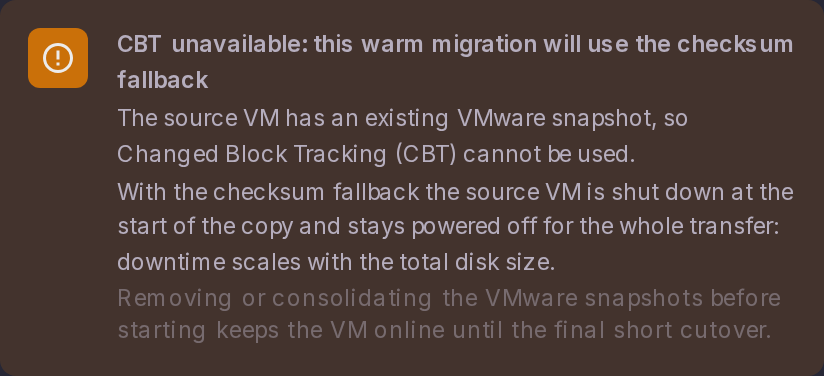
If minimizing downtime is the goal, delete or consolidate all VMware snapshots on the VM before starting the warm migration. With a snapshot-free VM, CBT is used, the bulk of the data is copied while the VM keeps running, and the VM is only shut down for the short final delta sync at cutover.
On XCP-ng the fallback applies when a disk sits on a storage repository that is not VHD-based, see What the Source Needs.
Warm Migration Phases and Progress
A warm migration reports the phase it is in, and inside the long phases it reports the disk being worked on, the data transferred, the live throughput and an estimate of the time left. The two longest phases, pre-zeroing a thick target and the copy itself, report real progress too, so a job that is progressing normally can be told apart from a stalled one.
| Phase | What is happening |
|---|---|
| Planning | Reading the source configuration and deciding whether CBT can be used |
| Enabling CBT | Setting the Changed Block Tracking flag on the source VM |
| Preparing target disks | Allocating the target volumes, and pre-zeroing them when the target storage requires it |
| Full copy | The first full pass, with the source VM still running on the CBT path |
| Delta sync | Each subsequent incremental pass, narrowing the remaining delta |
| Awaiting cutover decision | The pipeline is holding, waiting for the operator to confirm the cutover |
| Shutting down the source VM | Clean guest shutdown before the last delta |
| Waiting for the source to power off | The shutdown was asked for, the source has not confirmed it yet, and the decision is the operator's, see Waiting for the source to power off |
| Cutover | Final delta, target VM creation and disk attachment |
| Verifying | Post-cutover checks |
| Converting disks | Optional post-migration qcow2 conversion, when it was requested |
How the percentage maps to the phases
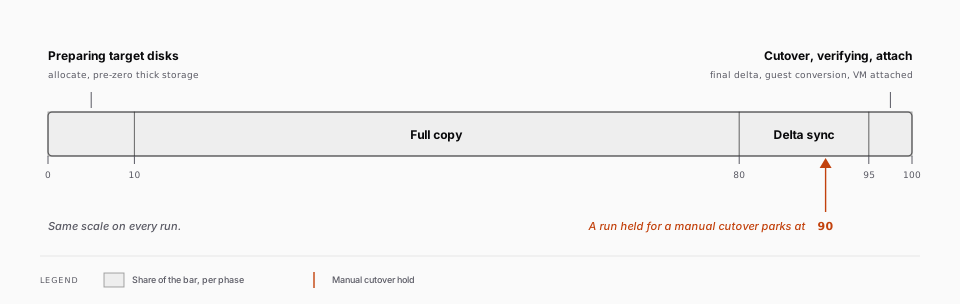
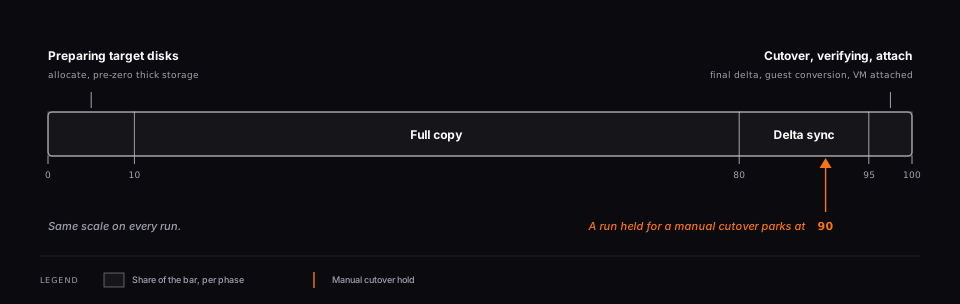
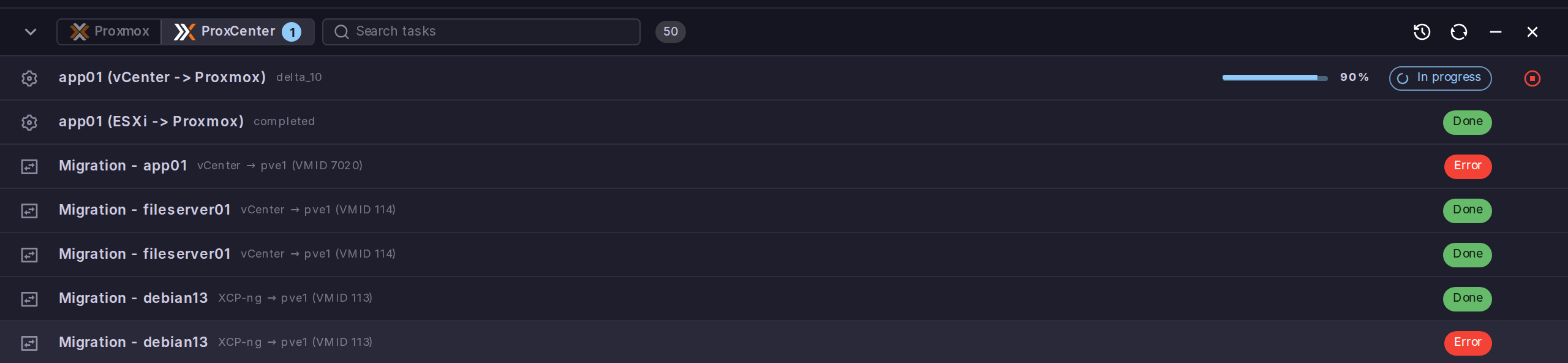
The percentage is on a fixed scale, so it is comparable between runs: preparing the target disks covers 0 to 10, the full copy 10 to 80, the delta passes 80 to 95, and the cutover, verification and attach the last 5. Opening the job from the tasks bar adds a detail line under the bar reading the phase, the disk being worked on, the data transferred, the throughput and the estimated time left.
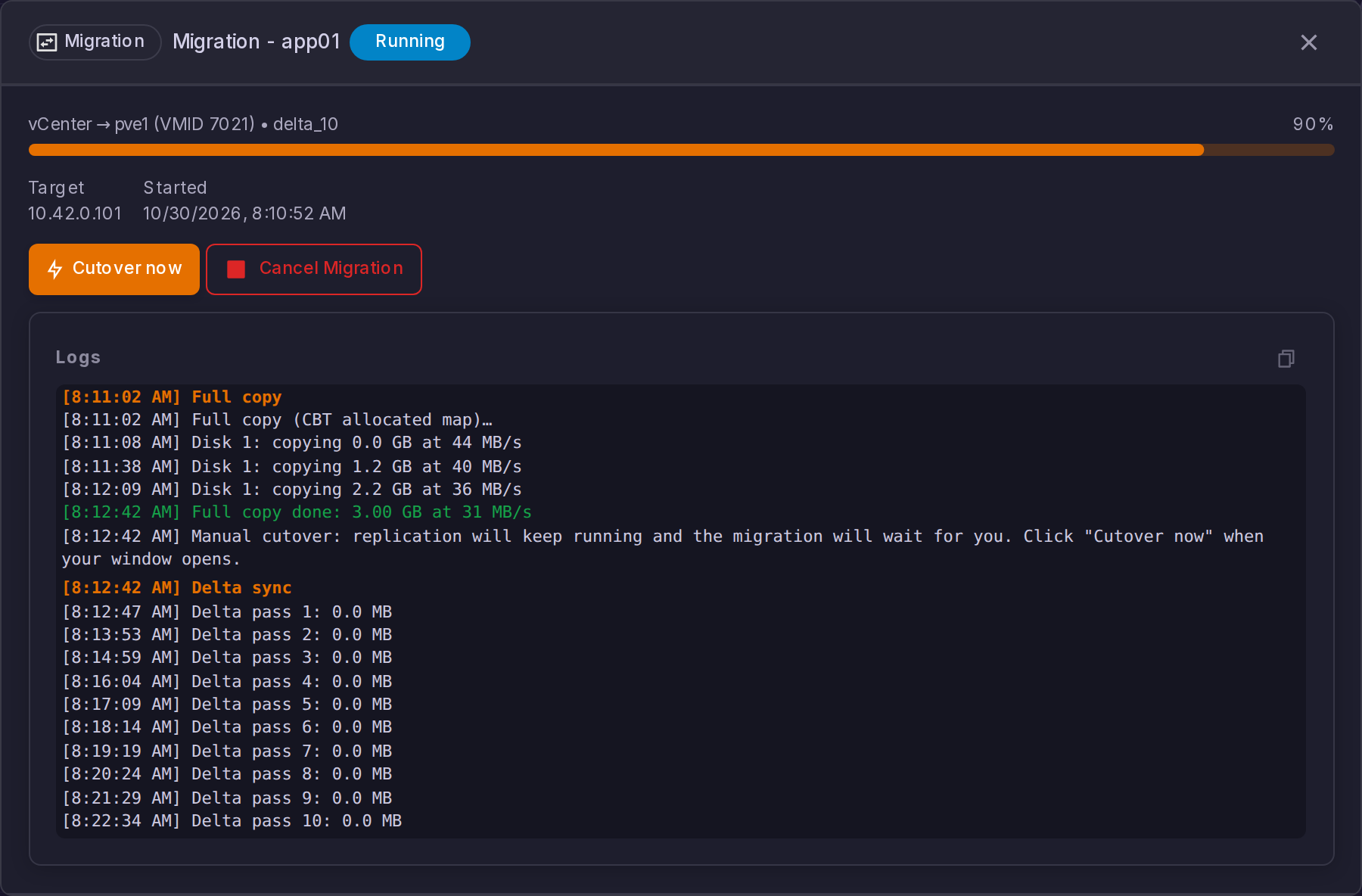
A run held for a manual cutover is the one exception to that scale: it has no last pass to aim at, so the bar parks at 90 for as long as the hold lasts instead of creeping to 95 and stalling there for hours. See Choosing the cutover moment.
LVM-Thin, ZFS and Ceph RBD hand back volumes that are already zeroed, so the Preparing target disks phase is short on those targets. On a thick LVM target the zeroing pass is mandatory and writes the full declared capacity of every disk, which can take hours on a multi-terabyte VM. The job log names the disk and its size when it starts, the phase reports the throughput as Zeroing: <n> MB/s while it runs, and a log line records each disk as it advances. If the storage array refuses the write-zeroes offload, the job says so and streams the zeros in parallel ranges instead.
On the checksum path the job first reads each disk in full on both sides. During that phase it reports progress but no throughput, and the log states plainly that nothing is being copied yet. Each disk's share of the bar is split between the scan and the copy that follows it.
Choosing the Cutover Moment
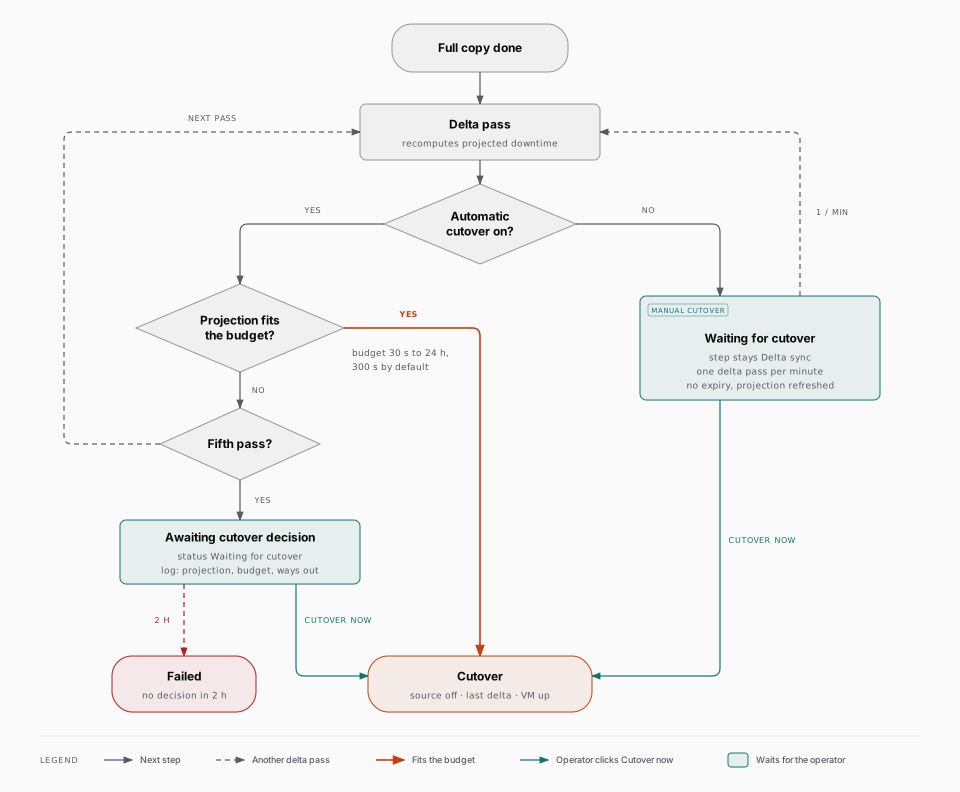
A warm migration ends with a short cutover: the source guest is shut down, a last delta is copied, and the target VM is created and started. Who decides when that happens is a per-migration choice, made in the Migrate to Proxmox VE dialog with the Automatic cutover switch, which is on by default.
Automatic cutover (the default)
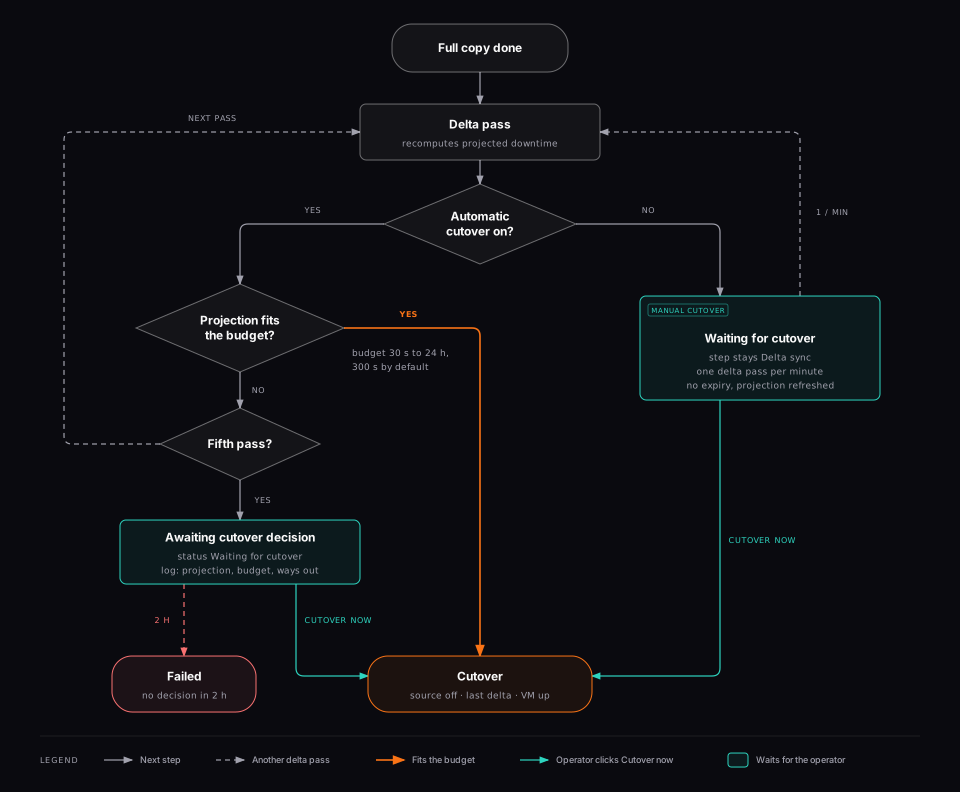
The switch on, the run cuts over by itself as soon as the projected downtime fits the downtime budget. The projection is recomputed after every delta pass from the bytes that pass moved and the throughput it achieved, plus a fixed allowance for the guest shutdown and the boot on the target.
The budget is settable in the same dialog, right under the switch, and only appears while the cutover stays automatic, since a run held for the operator ignores it. It is a slider paired with an exact seconds field:
- the slider walks a curated scale (30 s, 1 min, 2 min, 5 min, 10 min, 15 min, 30 min, 1 h, 2 h, 6 h, 12 h, 24 h), fine where the decision is actually made and coarse beyond;
- the field beside it takes any exact number of seconds, for a maintenance slot that sits between two stops of the slider;
- the accepted range is 30 s to 24 h, which is the range the API enforces, and an out-of-range value blocks the Migrate button instead of being refused after the job exists;
- leaving the field empty keeps the pipeline default of 300 s.
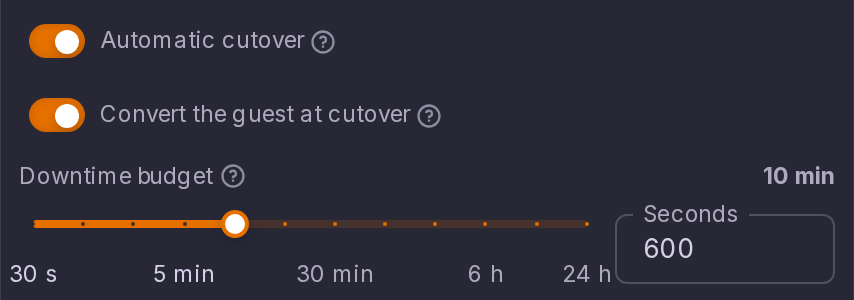
If the projection never fits the budget, the run does not cut over silently with a large downtime. After five delta passes it escalates to an operator decision: the job parks in Awaiting cutover decision and the job log states the projection, the budget and the two ways out. That gate expires after two hours, and the job then fails rather than holding a VDDK session open for ever.
Manual cutover
Turn Automatic cutover off and nothing but you ends the run. The migration keeps issuing delta passes, paced at one per minute so a converged source does not snapshot vCenter in a tight loop, and it has no expiry: it waits as long as your maintenance window needs. Every pass refreshes the projection, so the downtime shown at the moment you click is the real one and not an estimate from an hour ago.
A held run stays in the Delta sync phase rather than moving to Awaiting cutover decision, and every surface that shows a migration status labels it Waiting for cutover all the same.
The Automatic cutover switch and the downtime budget appear in the single-VM migrate dialog only. A batch held for the operator would need one cutover click per VM and would keep as many VDDK sessions open as there are VMs, so a bulk migration always uses the automatic cutover with the default budget.
Where the controls are
The switchover and cancel controls are one and the same component in two places, so they cannot drift apart:
- in the Migrate to Proxmox VE dialog, while it is open on the run you started;
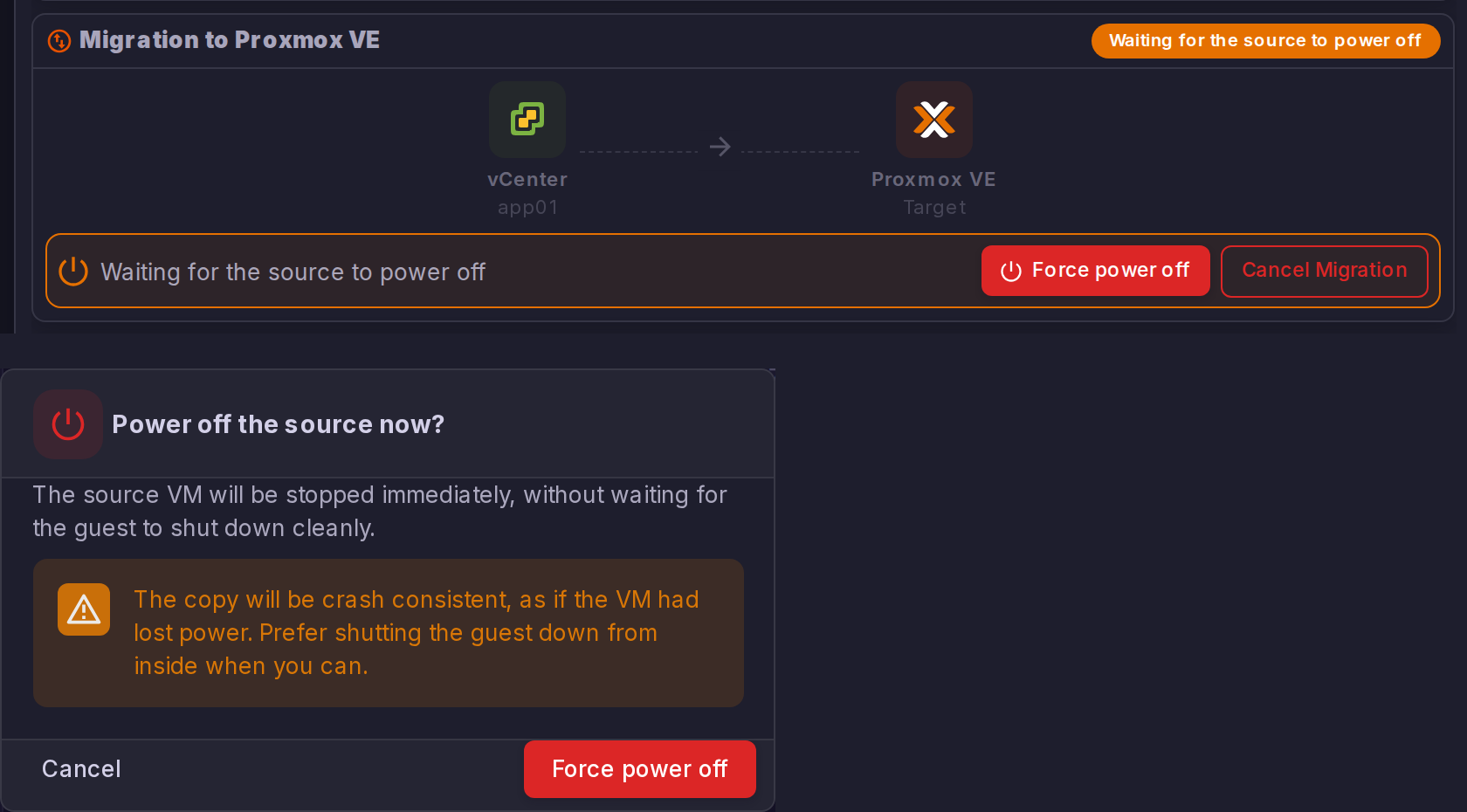
- in the VM panel of the source VM, in the Migration to Proxmox VE card, next to the source-to-target flow. That card carries the status chip, a line naming what the run is waiting for, the estimated downtime, and the buttons that resolve the wait: Cutover now, Force power off, Choose system and Cancel migration.
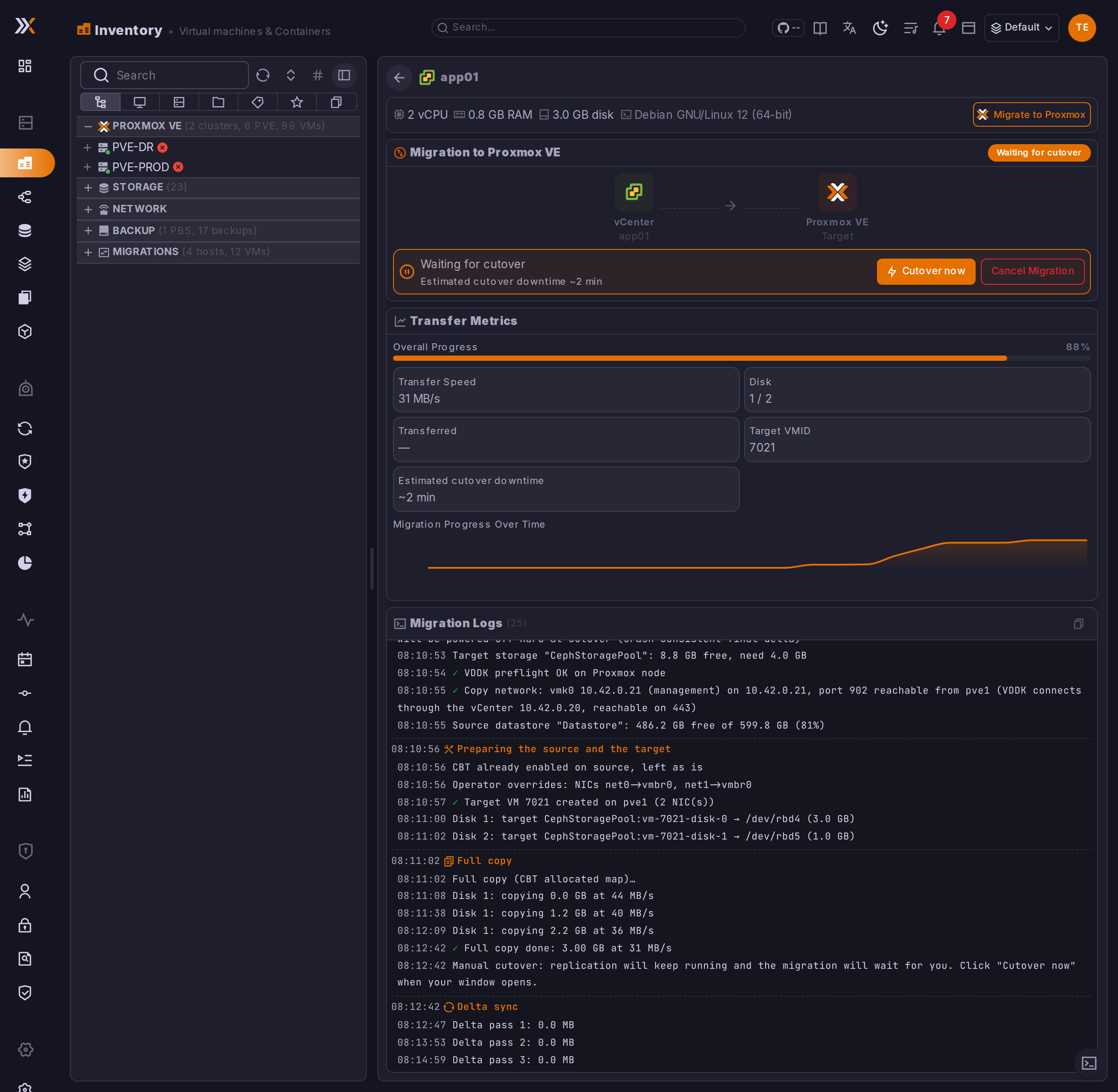
Cutover now appears as soon as a delta pass has produced an estimate, and asks for a confirmation stating the downtime to expect. Cancelling a run whose target already holds a copy asks for its own confirmation, see the cancellation question in Troubleshooting.
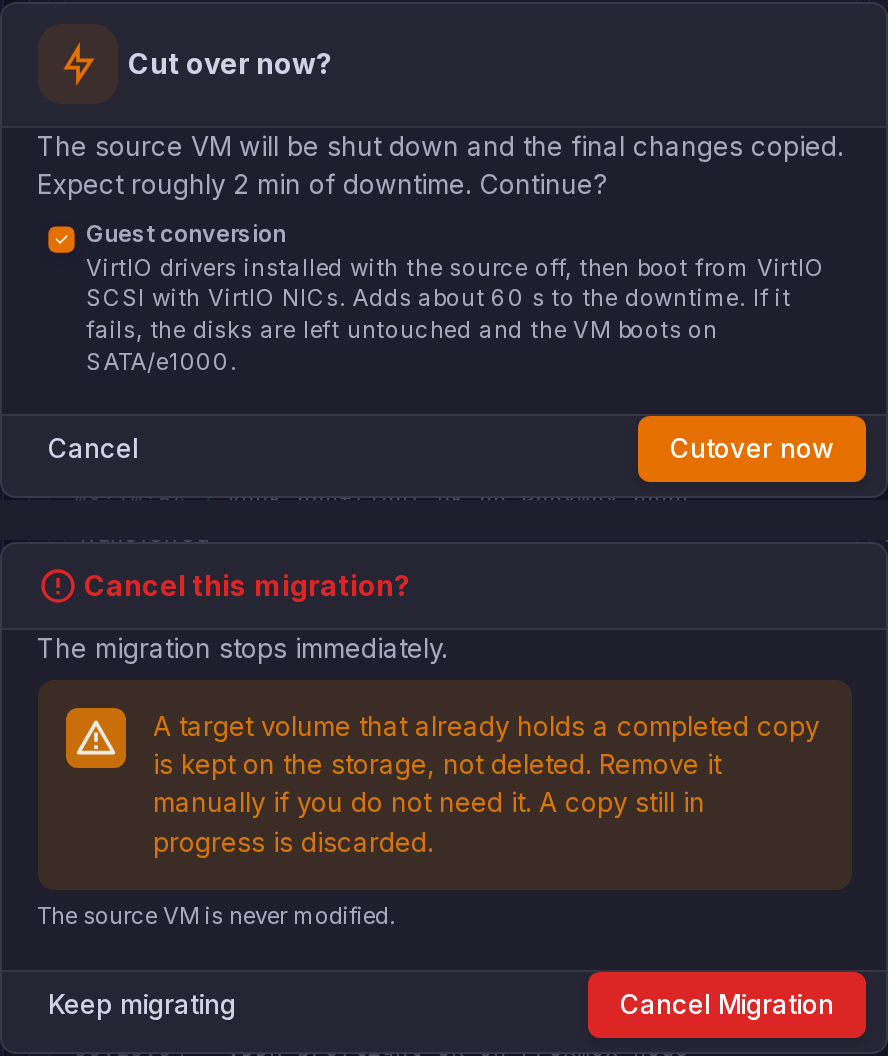
The confirmation dialog stays open and states the reason when a request is refused, so a refused click never passes for a successful one.
Why a cutover click works whichever frontend replica answers it
Cutover, force power off, cancel and the multi-boot root pick are all recorded on the job row itself, so the decision reaches the process actually running the pipeline. On an installation running more than one frontend replica, a Cutover now therefore acts whichever replica answered the click. A decision survives a page reload for the same reason.
Waiting for the Source to Power Off
The cutover asks the guest to shut down cleanly through VMware Tools, then waits for vSphere to confirm a powered-off state.
The wait is a step of its own, Waiting for the source to power off:
- it announces itself in the job log, saying whether the shutdown request was refused outright or simply not honoured yet;
- it restates the time left every minute;
- its budget is 30 minutes, and it is still bounded so an unattended job fails cleanly instead of pinning a VDDK session and a transfer snapshot for ever;
- it offers a Force power off button, in the migrate dialog and in the VM panel.
The hard power off stops the source as if it had lost power, which makes the final delta crash-consistent. On a guest that could be asked, it therefore stays the operator's decision, and the button's confirmation says exactly that before firing. Shutting the guest down from inside stays the better option whenever it is available.
A guest without VMware Tools is powered off hard on its own. vSphere refuses the shutdown request on the spot for a VM whose Tools are not installed or not running (ToolsUnavailableFault), and no amount of waiting changes that: a closed appliance will never honour it. The pipeline recognises that refusal, powers the source off hard at once, confirms the powered-off state and moves on to the final delta. The Waiting for the source to power off step and its button do not appear, because there is nothing left to decide; the job log says so, and it already warned at the start of the run that the source had no running Tools. The same rule applies to an XCP-ng guest without guest tools (VM_LACKS_FEATURE_SHUTDOWN). A guest that refused the request for any other reason keeps the operator wait described above.
A host that refuses the hard power off too, which is what an ESXi licence restriction does, is logged and the wait continues: the operator can still shut the guest down from within. The automatic power off of a tool-less guest falls back to the same operator wait when the host refuses it.
The checksum block-diff fallback shuts the source down before copying anything, not at cutover. It goes through the same step, the same 30 minute budget and the same Force power off action. One difference matters: on the CBT path a completed copy already exists on the target and is kept if the wait elapses, while on the fallback path nothing has been copied yet, so the volumes are freed.
How vSphere faults read in the job log
<faultstring> alone is a generic vCenter wrapper, such as A general system error occurred: Undeclared fault. A SOAP error therefore reads as the fault string, the concrete fault type and any localized message vSphere returned, separated by |, so the job log carries what vSphere refused rather than the wrapper around it.
vSphere Snapshot Waits
Every warm pass creates a transfer snapshot on the source VM and removes it afterwards, and the removal is what makes vCenter merge the delta back into the base disk. On a large VM that consolidation takes a long time.
ProxCenter follows each vSphere task to completion, with budgets sized for real workloads, and it always raises an error rather than reporting an unfinished task as done. Before each pass it also waits out any consolidation still in flight on the source VM.
| Operation | Budget |
|---|---|
| Create a transfer snapshot | 30 minutes |
| Remove a snapshot whose merge a later pass depends on | 4 hours |
| Wait out a consolidation already in flight | 4 hours |
| Remove the last snapshot of a run, or clean up after a failure | 15 minutes |
| Create the cutover snapshot | 5 minutes |
| Consolidate during cutover | 2 minutes |
These budgets are fixed in the product; there is no setting to change them. The cutover budgets are deliberately short because the source VM is already powered off at that point and every extra wait is guest downtime. When a budget does elapse, the vSphere task keeps running on the vCenter side; ProxCenter stops waiting and fails the job with the operation, the object and the budget named in the error.
How transfer snapshots are named and cleaned up
Warm transfer snapshots are created with a proxcenter-warm- name prefix. If a job fails, cleanup resolves them by name and removes any that remain on the source VM, so a snapshot that vCenter created after a timed-out request cannot be left growing on a production VM unnoticed. The waits are also sliced so a job stays cancellable while it is waiting on vCenter.
vSAN Support
ProxCenter supports migrating VMs from ESXi hosts that use VMware vSAN storage. The migration pipeline handles the vSAN object retrieval transparently -- no special configuration is needed beyond providing valid ESXi credentials with read access to the datastore.