Conversion Pipeline and Options
An offline migration goes through the four stages described here; the guest hardware mapping and the migration options apply to warm runs as well. This page describes the stages, the options of the migration dialog, guests with several bootable systems, and the timeouts and gates that stop a job.
Pipeline Stages
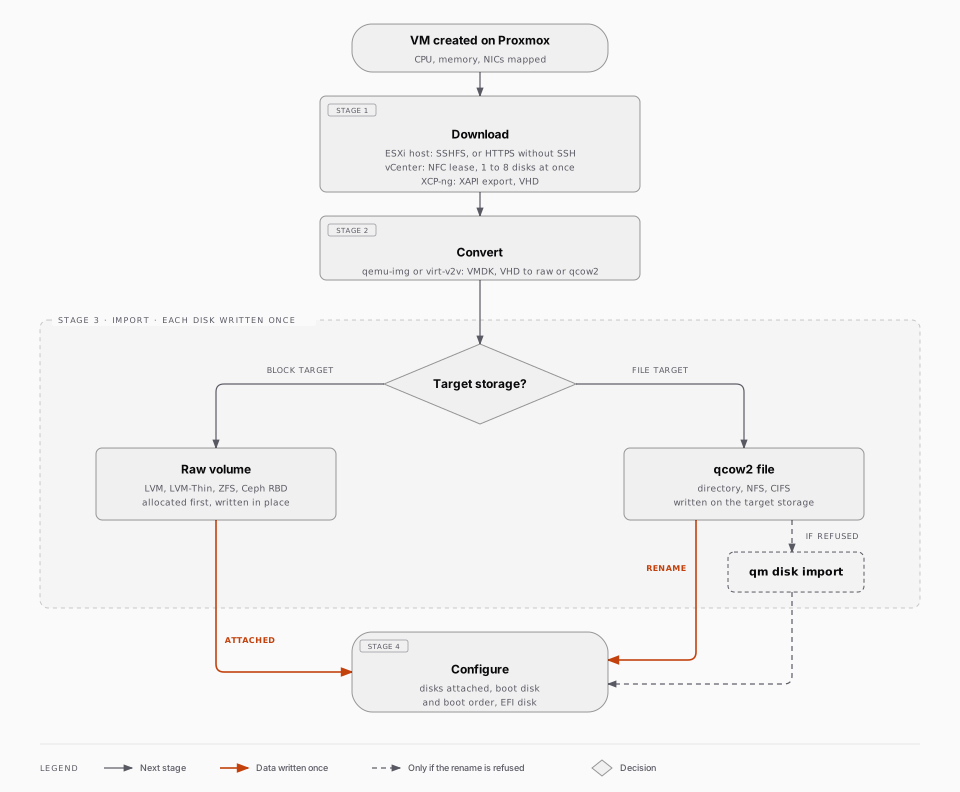
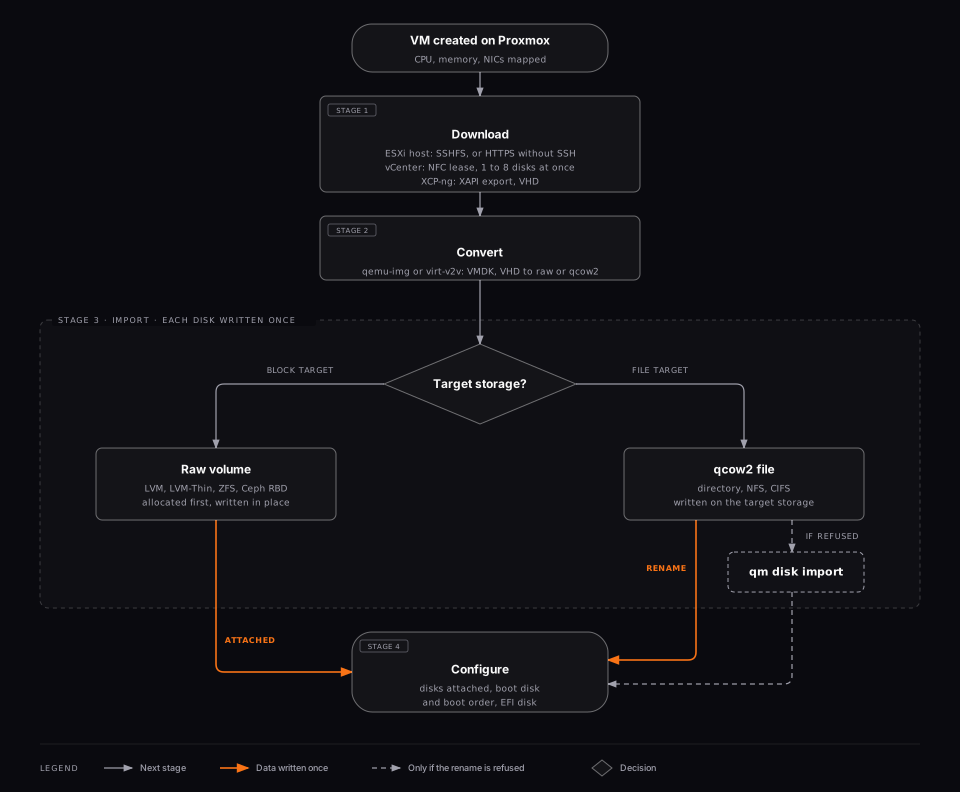
Each migration goes through these sequential stages:
1. Download
The VM disk is downloaded from the source hypervisor. For ESXi, this uses the VMware VDDK / HTTP file access. For XCP-ng, the disk is exported via the XAPI export interface.
A vCenter source streams each disk over an NFC export lease as a stream-optimized VMDK that the ESXi host compresses on the fly. The ceiling of that transport is per stream, not per link: one stream sits around 20 to 30 MB/s on the wire whatever the network offers, so a single stream would keep a 5 TB VM in this stage for more than a day. The disks download in parallel, each over its own lease. The Parallel disk downloads slider of the migration dialog sets how many at once, two by default and up to eight; raise it once you have checked that the source host and the node's temporary storage keep up, see Migration options.
How the download percentage is measured on thin disks
The percentage and the ETA of this stage are honest on thin disks. The bytes landing on the node are compressed, so they say nothing about how far the export is inside the disk; ProxCenter reads the position from the stream itself, and reports it against the disk capacity. The job log shows both figures for each disk, the position inside the disk and the bytes on the wire with the wire rate, so a 1.8 TB thin disk that holds 900 GB of data completes at 100%, without a warning about its size.
A failed XCP-ng disk download is retried automatically, up to three times, before the job fails. A slow SSH probe of the Proxmox node does not count against a healthy download either.
2. Convert
The downloaded disk is converted to a Proxmox-compatible format using qemu-img convert. VMDK files (ESXi) and VHD files (XCP-ng) are converted to qcow2 or raw format depending on the target storage type.
3. Import
The converted disk is imported into Proxmox using qm disk import, which uploads the disk to the selected target storage and associates it with a new or existing VM.
4. Configure
The imported VM is configured with the original settings: CPU count, memory, network interfaces, and boot order. The boot disk is set automatically so the VM is ready to start. For Hyper-V and Nutanix sources the CPU count and memory are read from the Hyper-V host or from Prism Central, since virt-v2v only sees the disk image and would otherwise create the VM with 1 vCPU and 2 GB of RAM.
For EFI-based VMs, ProxCenter automatically handles the EFI disk allocation. The data disk may be assigned to disk-1 instead of disk-0 since disk-0 is used for the EFI disk.
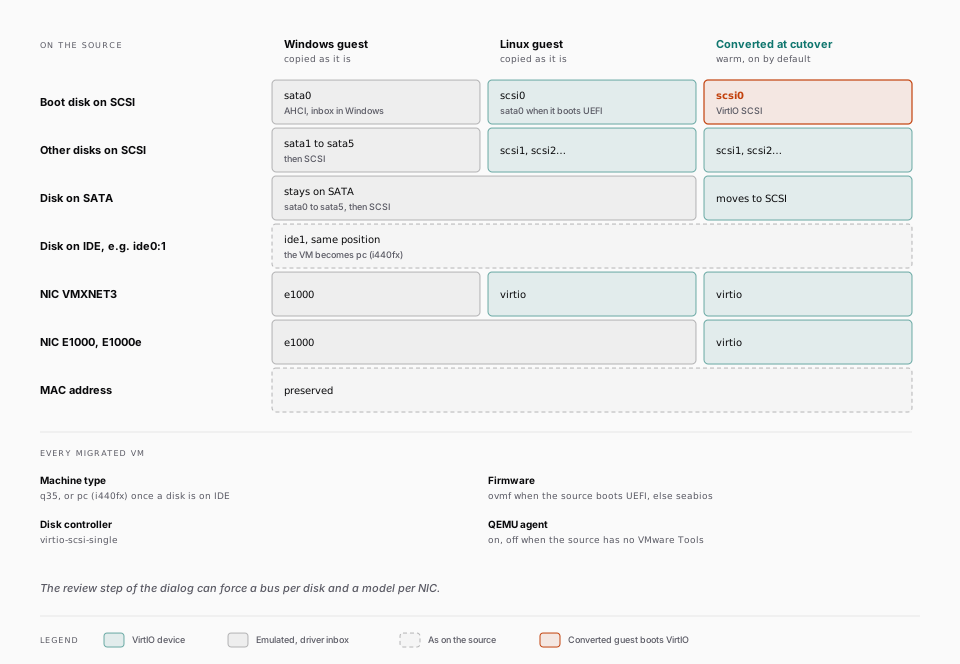
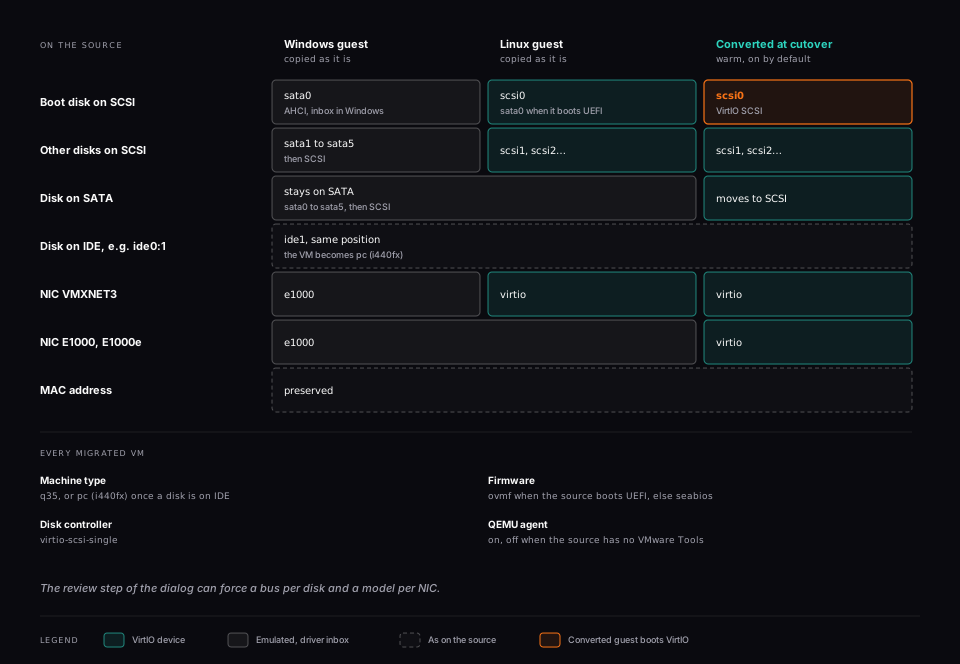
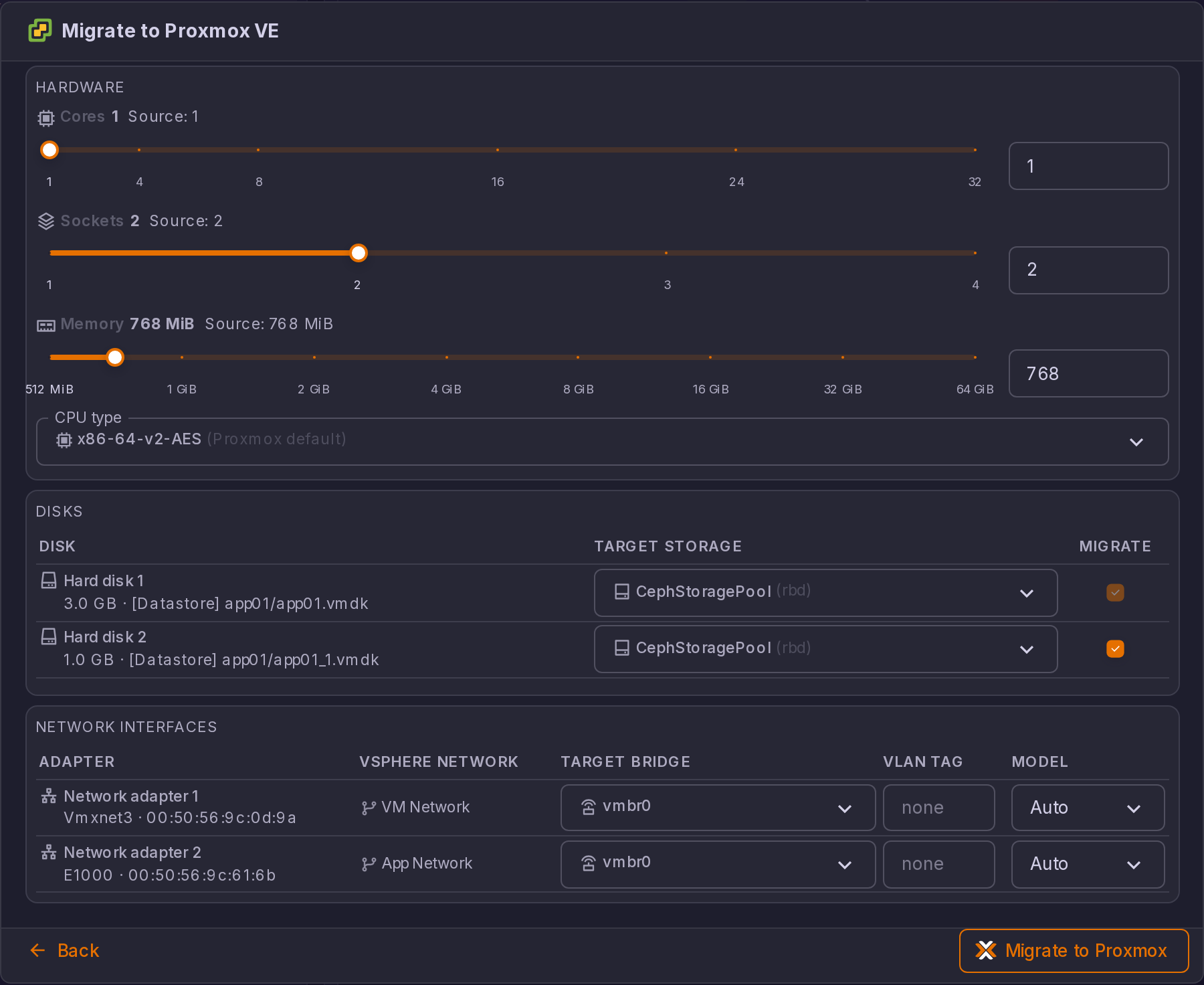
Guest hardware mapping. On the direct ESXi pipelines (cold and warm) and on the XCP-ng pipelines (cold and warm), the target hardware is derived from the source configuration:
| Setting | Value on the migrated VM |
|---|---|
| Machine type | q35, or pc (i440fx) as soon as one disk lands on IDE, see below |
| Firmware | ovmf when the source VM boots UEFI, seabios otherwise |
| Disk controller | virtio-scsi-single, for every guest |
| Disks on an IDE controller at the source | Stay on IDE, at their source position (ide0:1 on vSphere becomes ide1), and the VM boots from the lowest IDE slot |
| Disks on a SATA controller at the source | Stay on SATA (sata0 to sata5, the overflow goes to SCSI) |
| Boot disk of a SCSI source | sata0 for Windows guests and for UEFI guests, scsi0 otherwise |
| Other SCSI disks | SCSI, on the VirtIO SCSI controller |
| Network card | e1000 for Windows guests, virtio otherwise (a source E1000 or E1000e card stays e1000) |
| MAC address | Preserved from the source NIC |
| QEMU guest agent | Enabled, except for a guest that has no VMware Tools installed (a closed appliance will never run a QEMU agent either) |
Why IDE disks stay on IDE, and why that means i440fx
A raw block copy carries the guest exactly as it is, drivers included. A closed appliance built for a legacy IDE controller (a PBX or a firewall image, typically four small disks on ide0:0 to ide1:1, no VMware Tools, guest OS "other") does not boot from a VirtIO SCSI controller, so such disks come back on IDE at their source position. The machine type follows: q35 has no legacy IDE controller, Proxmox hangs its ideN off the ICH9 AHCI where only ide0 and ide2 can even be created, so a VM with an IDE disk is created as pc (i440fx). The XCP-ng pipelines keep the SCSI rule: a XAPI virtual block device carries no IDE or SATA distinction.
Why the boot disk lands on SATA
A raw block copy of a Windows disk carries no boot-start driver for the emulated LSI 53C895A controller, and a BIOS-firmware Windows guest booted from it stops with INACCESSIBLE_BOOT_DEVICE. AHCI (SATA) is inbox and boot-start in every supported Windows, so the boot disk is placed on sata0 while the data disks stay on the VirtIO SCSI controller, where they appear as soon as the VirtIO drivers are installed inside the guest. UEFI guests follow the same rule, because OVMF cannot enumerate an LSI controller. No option to set: the decision is taken from the detected guest OS and firmware.
vCenter, Hyper-V and Nutanix sources migrated offline take the virt-v2v route instead, which performs its own hardware mapping and injects the VirtIO drivers into Windows guests. A warm migration always uses the mapping above, including when the source is a vCenter.
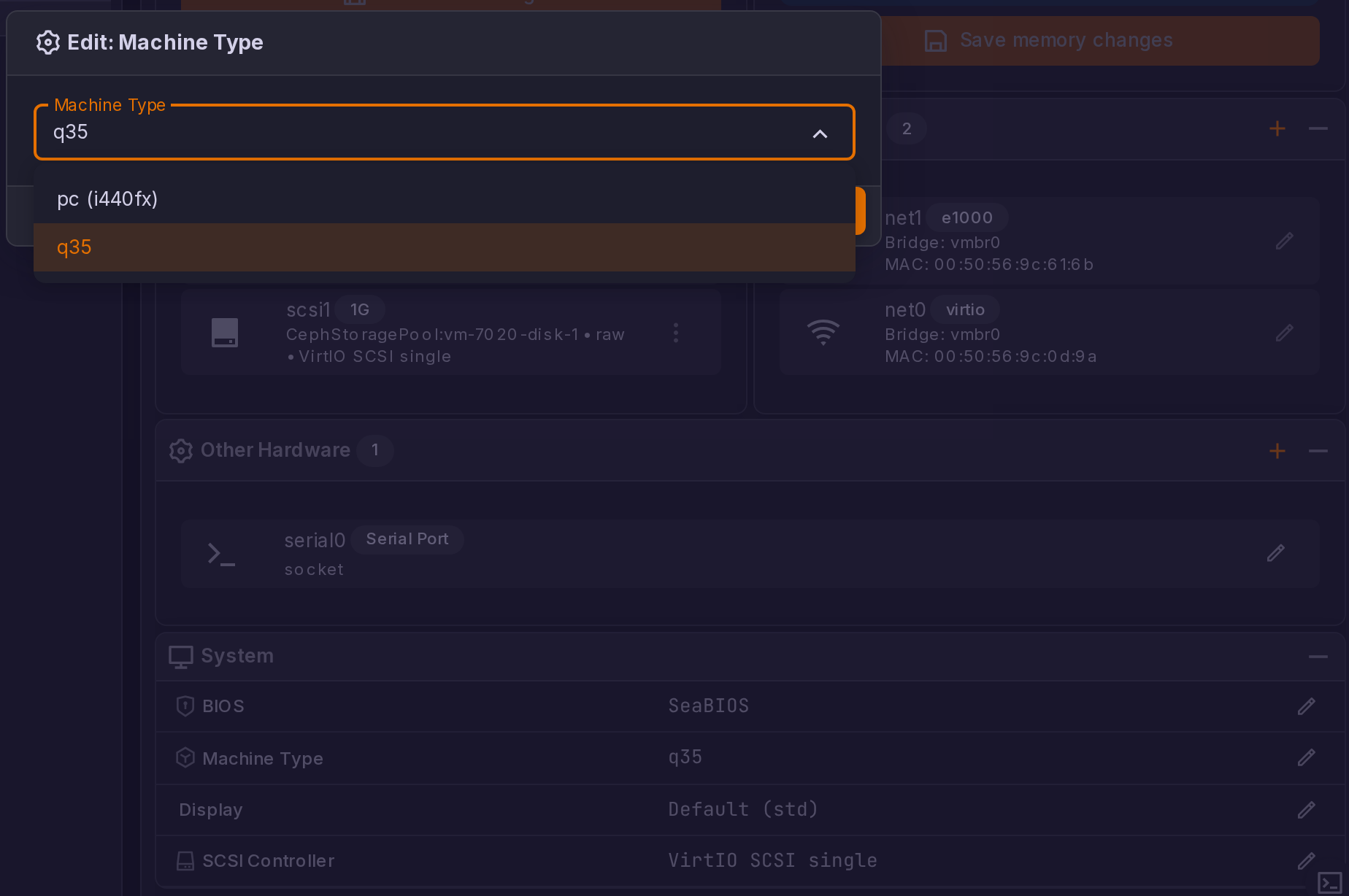
Changing the machine type afterwards. Migrated VMs are created with the q35 machine type. When a guest is pinned to the older i440fx chipset, change it from the Machine Type row of the VM's Hardware > System panel, where the option reads pc (i440fx). ProxCenter sends that machine as pc, which is the spelling qemu-server accepts. A machine string carrying a version pin (pc-i440fx-9.2+pve1) or extra keys (viommu, aw-bits, enable-s3, enable-s4) is handled as well: the pin is preserved while the family stays the same, and dropped only when you switch family, because a pin is family specific.
Migration Options
Beyond the target selection, a few options in the Migrate to Proxmox VE dialog change what the pipeline does. Most appear in the single-VM dialog and in the bulk dialog; the two cutover options are single-VM only, as noted below.
| Option | Shown when | Default | Effect |
|---|---|---|---|
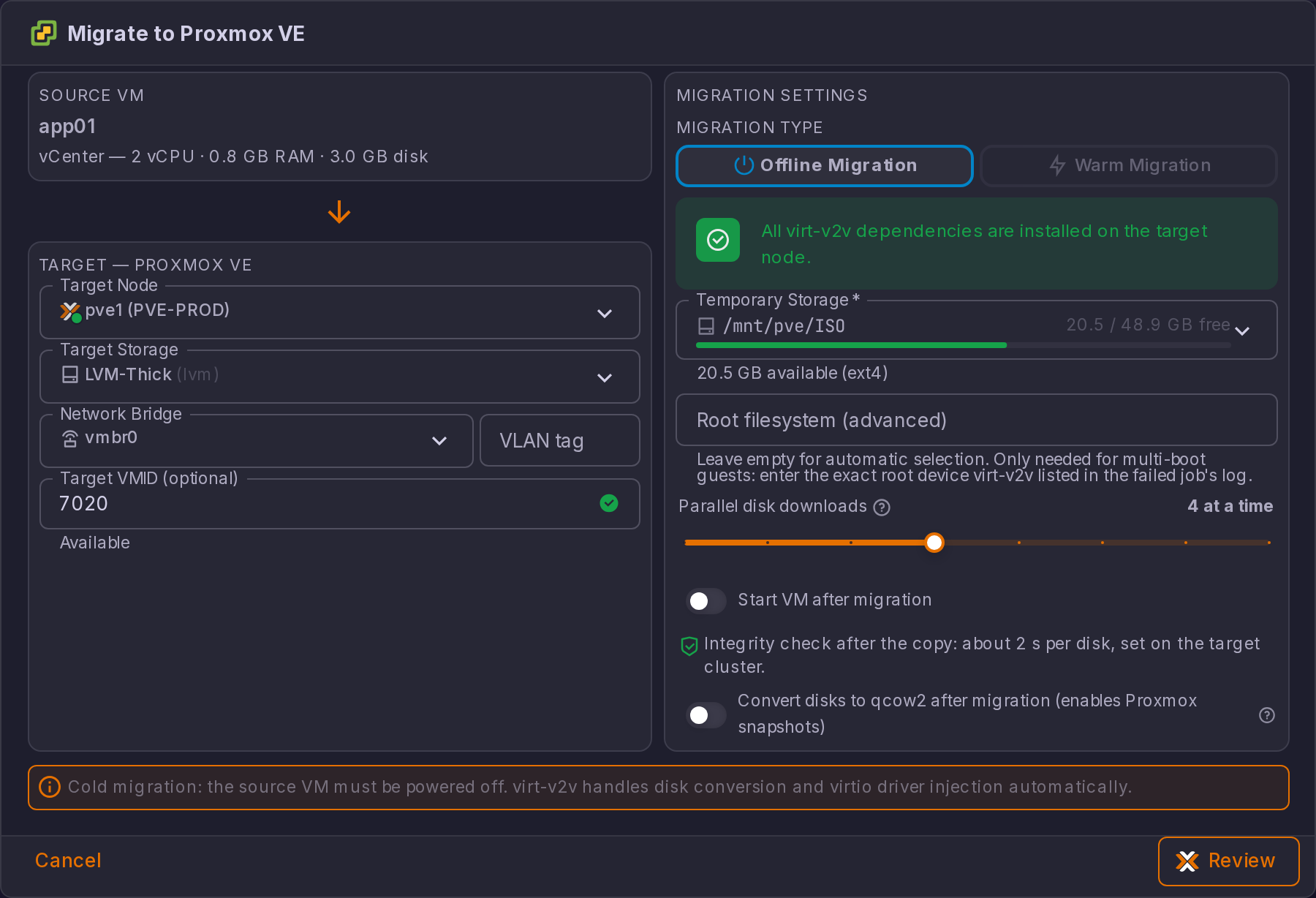
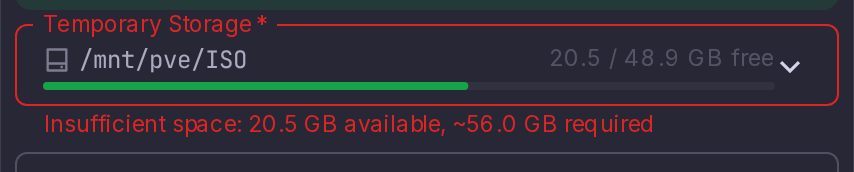
| Temporary Storage | Offline migrations only | Preselected from the node preflight | Where virt-v2v and the direct-ESXi pipeline write their temporary files. /tmp on a Proxmox node is often a small tmpfs, so pinning the multi-gigabyte work to a real filesystem avoids a mid-migration "no space left on device". The helper text shows the free space of the selected mount and turns into an error when it holds less than twice the source disk size. |
| Root filesystem (advanced) | Offline migrations that use virt-v2v | Empty (automatic selection) | Names the system to convert on a guest that has more than one. Left empty, ProxCenter picks it automatically, and only asks when the choice is genuinely ambiguous, see Guests with several bootable systems. The value is a device name exactly as virt-v2v reported it in the job log, for example /dev/system/root. |
| Parallel disk downloads | Offline migrations from vCenter | 2 | How many disks download at once over NFC, from 1 to 8. Each stream is capped by the ESXi host around 20 to 30 MB/s, so a multi-disk VM gets faster near linearly until the source host or the node's temporary storage becomes the bottleneck. The job log names the position inside each disk and the bytes on the wire, see Pipeline stages. |
| Automatic cutover | Warm migrations, single-VM dialog only | On (a switch) | On, the run switches over by itself once the projected downtime fits the budget. Off, it keeps replicating and waits for you, see Choosing the cutover moment. |
| Downtime budget | Warm migrations with Automatic cutover on, single-VM dialog only | 300 s | The projected downtime the run accepts before it cuts over on its own. A slider on a curated scale, paired with an exact seconds field, over the 30 s to 24 h range the API enforces. |
| Convert disks to qcow2 after migration (enables Proxmox snapshots) | The selected target storage is a thick LVM storage | Off (a toggle) | After the migration completes, each disk is rewritten to qcow2 in the background, live, while the VM runs. This restores the ability to take Proxmox snapshots on a thick LVM target, whose volumes are allocated raw. |
The last three sit at the bottom of the Target -- Proxmox VE panel, under Start VM after migration, in that order. Each carries a ? icon with the full explanation.
It can take hours on a multi-terabyte disk and it temporarily uses double the space on the target storage. There is no downtime, the VM keeps running while it happens, but do not schedule it on a storage that is already close to full. The job reaches the Converting disks phase once the VM itself is migrated and usable.
Why the qcow2 option only appears on thick LVM
LVM-Thin cannot hold a qcow2 image, and ZFS and Ceph RBD snapshot natively, so the option is hidden on those targets. Directory and NFS targets already receive qcow2 images. Thick LVM is the only case where the migrated volume is raw and therefore has no snapshot support until it is converted. The option is re-checked against the selected storage when the migration is launched, so a toggle left on for an earlier LVM pick cannot leak into a run against a storage it does not apply to, and the server re-validates that the storage really defaults to qcow2 (an LVM storage with snapshot-as-volume-chain) before converting anything.
When the conversion is skipped or does not complete, the migration is still a success: the VM is migrated and usable, its disks are simply still raw. The job log says which case applied, and the reasons it can decline are named there: the storage does not default to qcow2, there are no raw data disks to convert, or the free space left on the target is below the size of the largest disk to convert (the conversion transiently needs a second full copy of the disk). You can convert a disk later by hand with Move disk on the same storage, choosing the qcow2 format.
The Temporary Storage selector, and the free-space check attached to it, are only shown for offline migrations. On the warm path nbdkit streams the disk data from VMware straight into the target block device and nothing large ever lands on the node's temporary filesystem.
Guests with Several Bootable Systems
When virt-v2v finds more than one operating system on the source disks, ProxCenter picks the system to convert itself when only one real system remains, and asks you when the choice is genuinely ambiguous.
Why a guest reports several systems, and why the conversion never prompts
virt-v2v inspects the source disks to find the operating system it must convert. When it finds more than one, its default behaviour (--root ask) is to print a numbered list and wait for an answer on standard input. ProxCenter launches the conversion detached, with no console attached, so that question has to be answered without a prompt: left to itself the process would read end of file and die with virt-v2v: error: exception: End_of_file, on a vCenter source only after the disks would have been transferred in full.
This situation is not limited to dual-boot machines. A SUSE or openSUSE guest using btrfs with snapper is affected by design: every snapshot subvolume is inspected as a separate operating system, so a single installed system can be reported as a dozen candidates.
The conversion never prompts. It runs with its standard input closed, so a prompt fails immediately and deterministically instead of depending on when the SSH channel happens to close. That holds on every input path: direct ESXi, vCenter over NFC, Hyper-V, Nutanix.
What ProxCenter does with the list. It reads the candidate list back from the failed run, discards the btrfs snapshot subvolumes, and if exactly one real system remains it retries the conversion once, straight away, with that system pinned. Nothing to do, and nothing is transferred twice: the disks are already on the Proxmox node at that point, and the partial output of the first attempt is removed so it cannot be attached as a stray extra disk. The job log names the candidates and the system it picked.
Why ProxCenter never converts the first system listed
ProxCenter never falls back to "convert the first one". The virt-v2v manual states the root ordering is not meaningful, and converting a read-only snapshot subvolume would inject the VirtIO drivers and rebuild the initramfs in the wrong place, producing a VM that does not boot.
When the choice is genuinely ambiguous. If two or more real systems remain, ProxCenter does not guess. The job parks on the Awaiting system choice step, keeps the disks it has already downloaded, and a Choose system button appears in the migrate dialog and in the Migration to Proxmox VE card of the VM panel. It opens a list with one entry per system found, each with the description virt-v2v reported, and picking one resumes the conversion immediately without transferring the disks again.
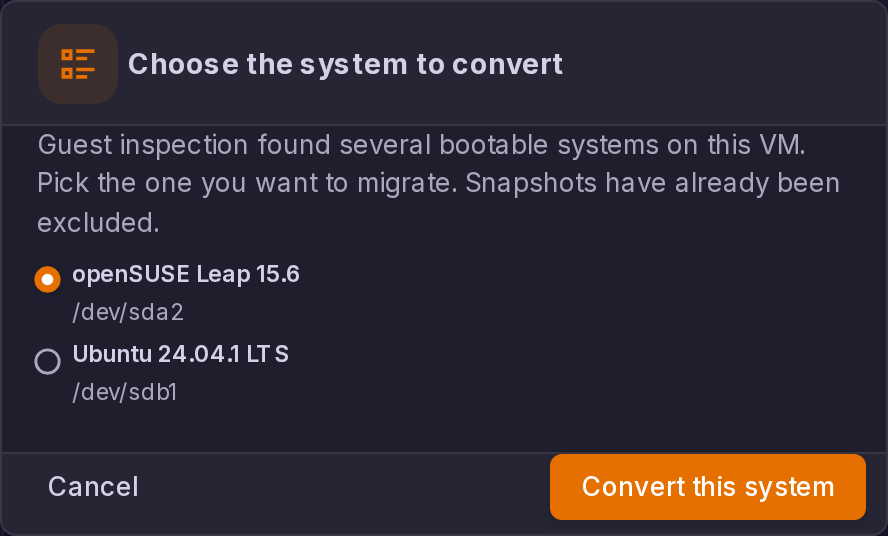
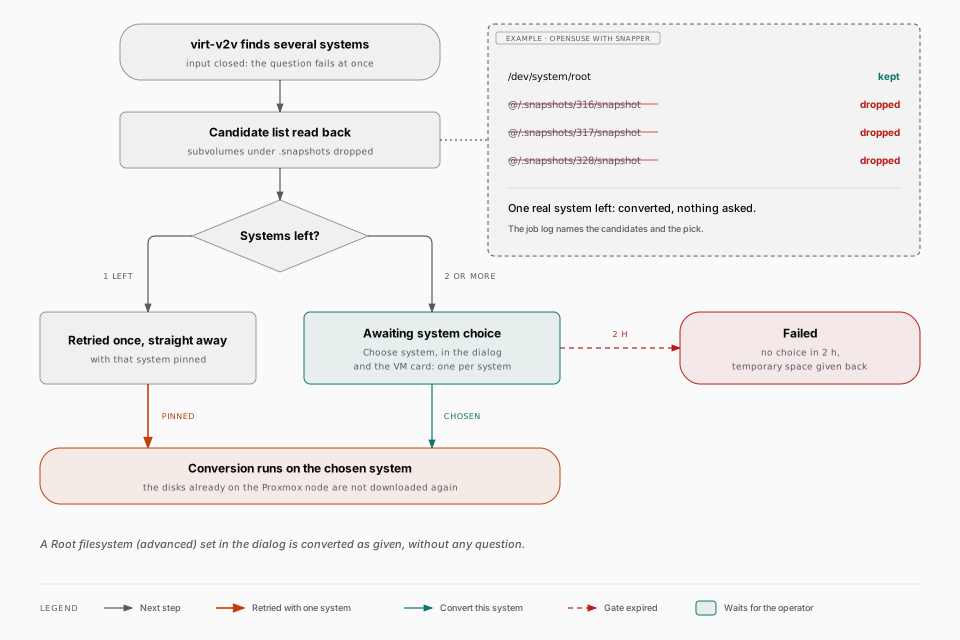
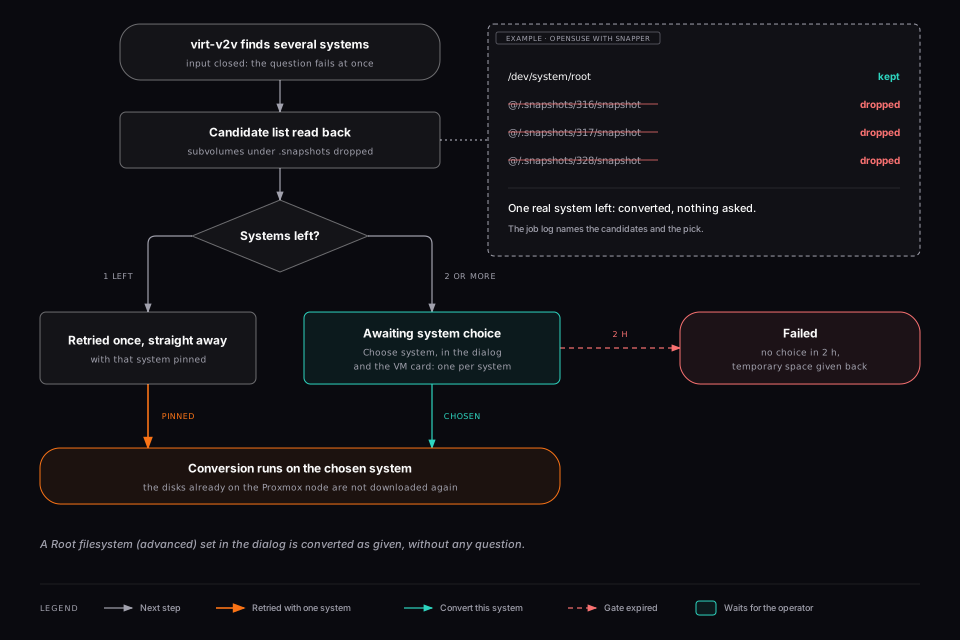
The pause is bounded: after two hours by default the job gives up and releases the temporary space it was holding on the node. That budget is a setting, see Timeouts and gates.
Cancelling a parked job stops it for real: the virt-v2v pipeline is signalled, not just the job row.
You can also decide up front with the Root filesystem (advanced) field described in Migration options. The value must be one of the device names the job log reported, for example /dev/system/root on an LVM guest or /dev/sda2 on a plain disk; it is validated against the candidate list rather than merely sanitized, because it reaches a command line on the Proxmox node. An entry that points inside .snapshots is a read-only snapshot and is never the right target.
Timeouts and Gates
Three settings govern how long ProxCenter waits, and they are the ones the migration pages refer to. All three are optional environment variables of the ProxCenter frontend container, all three take milliseconds, and leaving one empty keeps its default. An unusable value is ignored with a warning in the server log rather than applied.
| Variable | Default | What it governs |
|---|---|---|
PVE_TIMEOUT_MS | 8000 (8 s) | The budget for a regular Proxmox API call. This is what the polling everywhere in the product relies on, so keep it short. |
PVE_SLOW_READ_TIMEOUT_MS | 30000 (30 s) | The budget for the reads that make Proxmox enumerate every declared backend, the migration Target Storage list first among them. Raise it on a datacenter declaring many PBS targets. |
V2V_ROOT_CHOICE_TIMEOUT_MS | 7200000 (2 h) | How long a cold migration parked on Awaiting system choice waits for an operator before it gives the node's temporary storage back. |
The two Proxmox budgets are passed through by all three stacks (Community, Enterprise and high availability). The virt-v2v gate reaches the Enterprise and high-availability stacks only, since migration is an Enterprise feature. See Installation for where to set them.
The waits inside a warm migration are not settings: the vSphere snapshot budgets and the 30 minute power-off budget are fixed in the product, and the downtime budget is a per-migration option of the dialog rather than an environment variable.